
This page provides instructions for configuring Beat System log sources in the LogRhythm SIEM using a log source virtualization template.
The steps outlined in this document are meant to be performed during the setup of individual beats. Return to this page when configuring your beats for the first time.
The Open Collector sends the output of every Beat to the Agent in a single syslog stream. The parent log source is a generic type: "Syslog - Open Collector." A log source virtualization template included with the LogRhythm Knowledge Base (KB) creates child log sources for each beat.
Prerequisites
-
LogRhythm Client Console
-
LogRhythm Administrator Account
-
Open the following port:
|
Direction |
Port |
Protocol |
Source |
|---|---|---|---|
|
Outbound |
443 |
HTTPS |
Beat Name (for example, OktaBeat) |
|
Outbound |
5671 |
AMQPS |
Event Hub Beat1 |
-
Download the latest KB .lkb file:
-
-
From a computer with Internet access, log in to the LogRhythm Community.
-
On the menu at the top of the screen, hover over New Releases and click Knowledge Base Releases.
-
Click Knowledge Base Request Form, and then select Request KB File.
-
Enter the correct License ID, Deployment ID and Product Version.
-
Click Get Knowledge Base.
-
Save the Knowledge Base .lkb file and transfer it to the computer on which the Knowledge Base is being updated.
-
You can also configure the Knowledge Base to automatically download when new versions are released. For more information, refer to Import a Knowledge Base.
1 Only required for the Azure Events Hub Beat.
Step 1: Import the Knowledge Base
To import the latest downloaded KB:
-
In the Client Console, from the Tools menu, select Knowledge, and then select Knowledge Base Manager.
The Knowledge Base Manager appears.
-
From the Knowledge Base Manager, click File, then click Import Knowledge Base File.
-
Select the latest downloaded Knowledge Base .lkb file, and click OK.
The Knowledge Base Import Wizard appears and starts unpacking and validating the Knowledge Base file. The file is checked for compatibility with your current deployment and is prepared for import. This may take several minutes. Upon completion, the Unpack Progress: Knowledge Base unpacked message appears. -
To import the Knowledge Base, click Next.
Upon completion, the Import Progress Import Completed message appears. -
Click OK.
The Knowledge Base Updated message appears. -
Click OK.
-
On the Knowledge Base Import Wizard, click Close.
Step 2: Verify the Log Source Virtualization Template
-
In the Client Console, on the main toolbar, click Deployment Manager.
-
On the Tools menu, select Administration, and click Log Source Virtualization Template Manager.
-
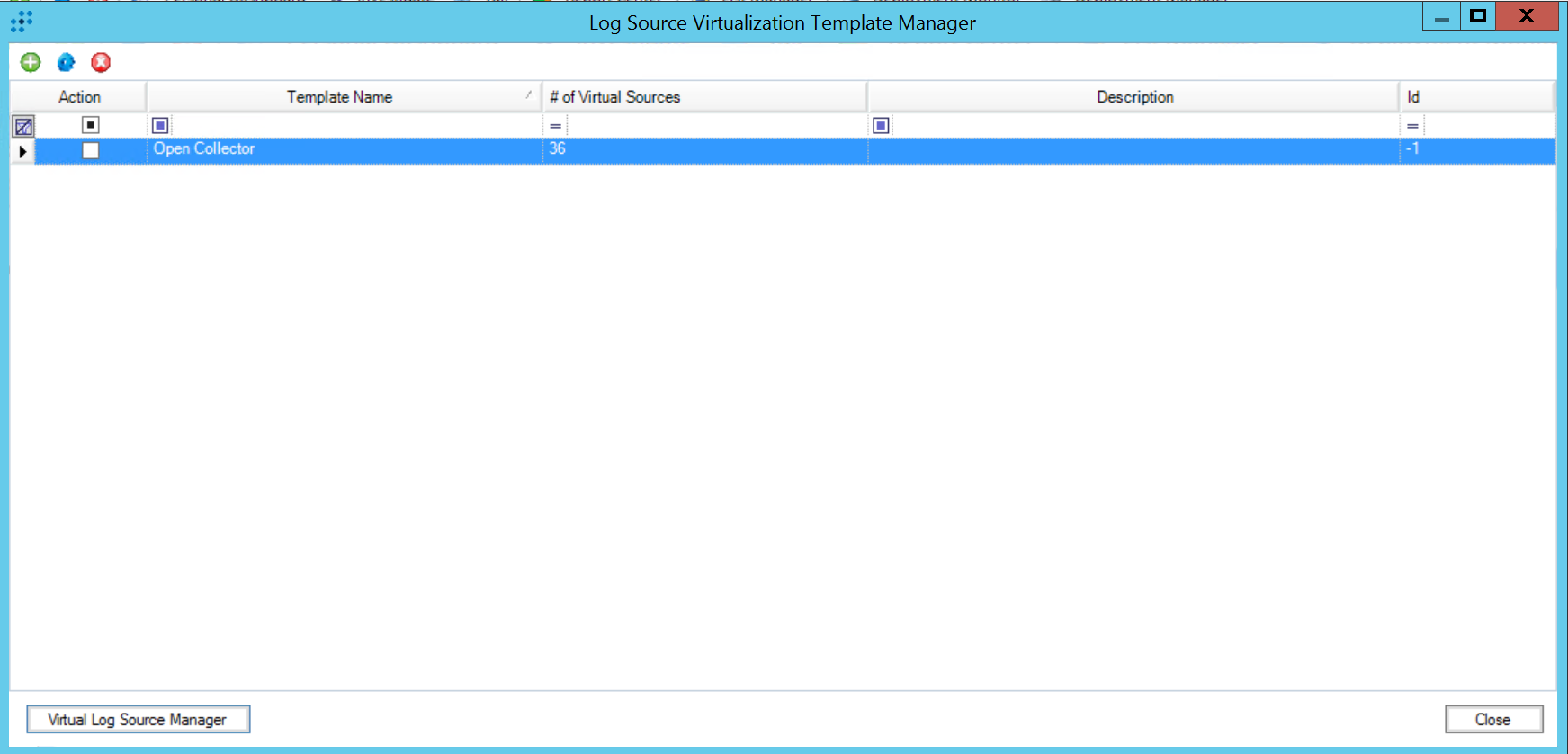
Verify that the Open Collector template is there in the Log Source Virtualization Template Manager, and verify the number of virtual log sources.
-
In the lower-left corner click Virtual Log Source Manager, and verify that the virtual log sources you need are on the list.
These log sources must be on the list:-
Syslog - Open Collector - (name of beat)
-
For information on the names of each individual log source for each beat, refer to the Beat Log Source Names section at the bottom of this page.
-
Click OK.
The Virtual Log Sources are available and verified. -
Click Close.
Step 3: Configure the Syslog Relay
This step explains how to configure the Syslog Relay. The Open Collector needs Syslog Relay for the following reasons:
-
By default, the agent timestamps syslog messages as they come in. The timestamp in the SIEM should reflect when the log was generated, not when the agent received this log.
-
An additional Syslog Relay Regular Expression is required to correctly extract the timestamp.
Beats configured using the JSON parsing method should use the regex relay outlined in the Configure Beats for JSON Parsing topic and skip this step.
To configure the Syslog Relay:
-
Go to the System Monitors tab.
-
Double-click the agent to which you will send the Open Collector syslog.
-
Go to the Syslog and Flow Settings tab.
-
Select the Enable Syslog Server check box, if it is not already selected.
-
Type the Open Collector IP Address in the Syslog Relay Hosts field on the left.
-
Type the following regular expression as the first line in Syslog Relay Regular Expressions:
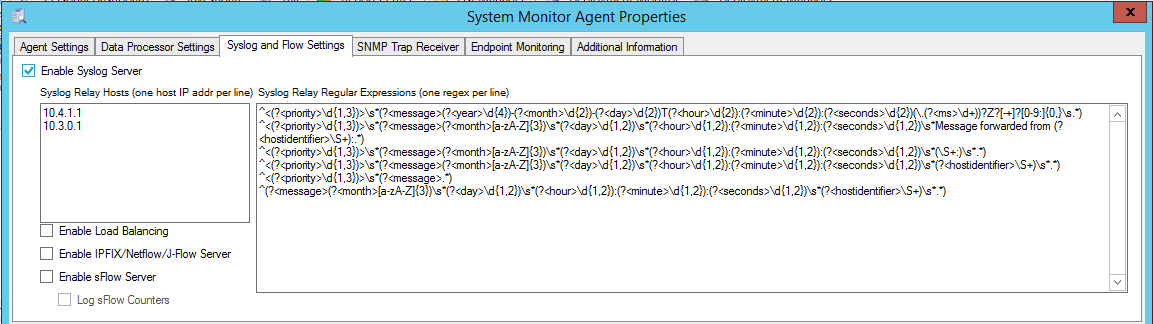
^<(?<priority>\d{1,3})>\s*(?<message>(?<year>\d{4})-(?<month>\d{2})-(?<day>\d{2})T(?<hour>\d{2}):(?<minute>\d{2}):(?<seconds>\d{2})(\.(?<ms>\d+))?Z?[-+]?[0-9:]{0,}\s.*) -
Click OK.
Here is an example of a configured Syslog Relay, where the Open Collector IP address is 10.3.0.1.
Step 4: Accept the Pending Log Source
After Open Collector logs are sent to the Windows System Monitor Agent, you need to accept the pending log source.
-
Click the Log Sources tab.
-
In the New Log Sources grid, select the Action check boxes for the following:
-
Log Source Type. Syslog - Open Collector
-
Log Processing Policy. LogRhythm Default
-
-
Right-click the selection, click Actions, and then click Accept.
-
Select one of the following:
-
Customize and change the following as needed:
-
Collection System Monitor Entity
-
Log Message Processing Settings
-
Log Data Management and Processing Settings
-
Silent Log Message Source Settings
-
-
Default to select customized defaults that were previously selected.
-
Select a default batch amount between 100 and 5000.
-
-
Click OK.
-
Click Refresh to see the newly accepted Log Source in the grid.
Step 5: Apply the Log Source Virtualization Template for System Log Messages
Use the log source virtualization template included in the KB imported in Step 1 to create a log source specifically for the beat’s logs.
-
Double-click the newly accepted Open Collector Log Source.
The Log Message Source Properties window appears. -
Go to the Log Source Virtualization tab.
-
Select the Enable Virtualization check box.
-
Click Create Virtual Log Sources.
The Create Virtual Log Sources dialog box appears. -
From the Log Source Virtualization Template menu, select the log source(s) for the beat you are configuring.
-
Click Save.
The confirmation prompt appears. -
Click OK.
New Log Sources appear in the grid as children of your parent log source.
Step 6: Apply the Log Source Virtualization Template for Heartbeat Messages
Use the log source virtualization template Included in the KB imported in Step 1 to create a log source specifically for Beat heartbeat logs.
This step is not required for beats configured using the JSON Parsing method that have had Long-Running LRCTL configured so that their heartbeat status can be monitored in the Beats Grid in the Web Console UI.
As of Open Collector 2026.10, released in October 2026, Open Collector Beats no longer generate heartbeat messages to indicate operational status. Health monitoring is now handled entirely through the existing Silent Log Source detection feature. Refer to Step 7 for instructions on configuring Silent Log Source detection for the beat.
For existing Beats with a heartbeat log source enabled:
-
Retire the heartbeat log source for this beat.
-
Configure Silent Log Source Detection as outlined in Step 7.
-
Double-click the newly accepted Open Collector Log Source.
The Log Message Source Properties window appears. -
Go to the Log Source Virtualization tab.
-
Select the Enable Virtualization check box.
-
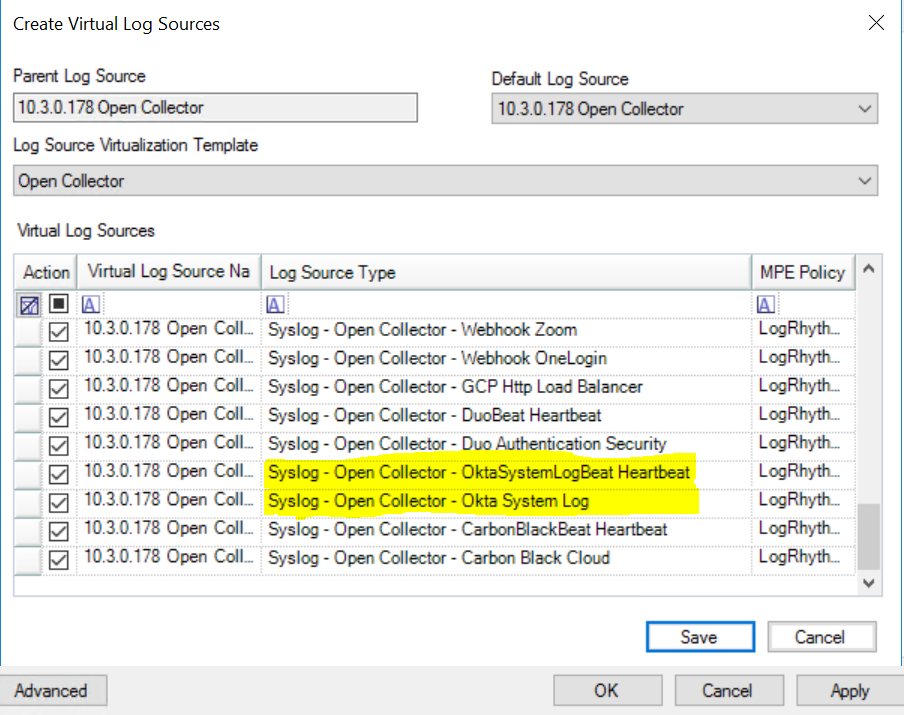
Click Create Virtual Log Sources.
The Create Virtual Log Sources dialog box appears. -
In the Log Source Virtualization Template menu, select the heartbeat log source for your desired beat.
-
Click Save.
The confirmation prompt appears. -
Click OK.
New Log Sources appear in the grid as children of your parent log source.
Step 7: Enable Silent Log Source Detection
Silent Log Source Detection tells you when one of your log sources has stopped reporting logs.
-
Double-click a child log source; for example, Syslog - Open Collector - Okta System Log.
The Virtual Log Message Source Properties window appears. -
Go to the Additional Settings tab.
-
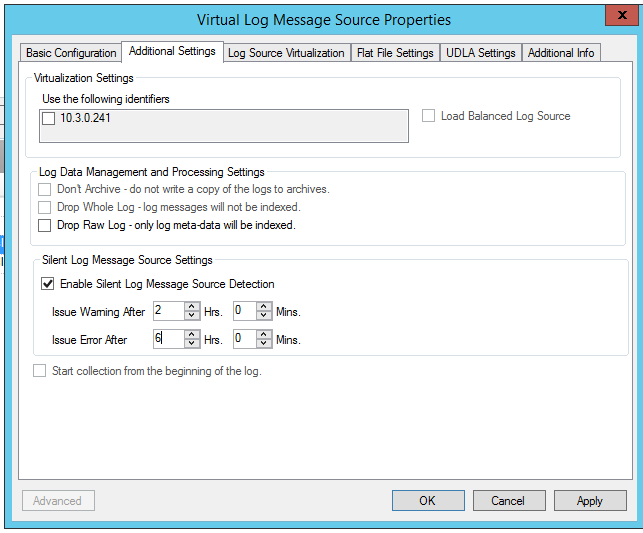
Select the Enable Silent Log Source Detection check box.
-
Configure warning and error intervals. LogRhythm recommends warning after 1 hour and error after 2 hours.
-
Click OK.
-
Go to the Alarm Rules tab.
-
Search for LogRhythm Silent Log Source Error and ensure the value in the Status column is Enabled.

Beat Log Source Names
The following table displays the names of the virtual log sources that must be configured for each beat. Certain beats contain multiple log sources for different logs being collected; you only need to configure the log source for the relevant logs of each beat.
|
Beat Name |
Log Source(s) |
|---|---|
|
AWS S3 |
Syslog - Open Collector - AWS CloudTrail
|
|
Azure Event Hubs |
Syslog - Open Collector - Azure AD Identity Protection
|
|
Box |
Syslog - Open Collector - Box |
|
Carbon Black Cloud |
Syslog - Open Collector - Carbon Black Cloud |
|
ChatGPT |
Syslog - Open Collector - ChatGPT Audit logs |
|
Cisco AMP |
Syslog - Open Collector - Cisco AMP |
|
Darktrace |
Syslog - Open Collector - DarkTracebeat |
|
Duo Authentication Security |
Syslog - Open Collector - Duo Authentication Security |
|
Exabeam Case |
Syslog - Open Collector - Exabeam Cases |
|
GCP PubSub |
Syslog - Open Collector - GCP Cloud Key Management Service
|
|
GitHub Enterprise Audit |
Syslog - Open Collector - GitHub - Code Security
|
|
Gmail Message Tracking |
Syslog - Open Collector - Gmail Message Tracking |
|
Google Workspace |
Syslog - Open Collector - Google Workspace |
|
Kafka |
Syslog - Open Collector - KafkaBeat |
|
MS Graph API |
Syslog - Open Collector - Microsoft Data Loss Prevention
|
|
Mimecast SIEM |
Syslog - Open Collector - Mimecast SIEM
|
|
O365 |
Syslog - Open Collector - Office 365 MA AuditAzureActiveDirectory
|
|
Okta |
Syslog - Open Collector - Okta System Log |
|
OpenAI |
Syslog - Open Collector - OpenAI Audit Logs |
|
Prisma Cloud |
Syslog - Open Collector - Prism
|
|
Proofpoint |
Syslog - Open Collector - Proofpoint |
|
PubSub |
Syslog - Open Collector - GCP Pub Sub |
|
Qualys |
Syslog - Open Collector - Qualys |
|
Salesforce Audit |
Syslog - Open Collector - Salesforce Audit EventLog
|
|
Salesforce |
Syslog - Open Collector - SalesforceBeat |
|
SentinelOne |
Syslog - Open Collector - SentinelOne API - Activities
|
|
Sophos Central |
Syslog - Open Collector - Sophos Central |
|
Symantec WSS |
Syslog - Open Collector - Symantecwssbeat |
|
Tenable |
Syslog - Open Collector - Tenable Vulnerability |
|
Webhook |
Syslog - Open Collector - Webhook
|