
The URL https://cloud.tenable.com/ is the primary web interface for Tenable Vulnerability Management. This dashboard is where you manage scans, view findings, and perform management tasks. To run the Tenable Beat, you need to generate Access and Secret keys that will be used to make API calls to Tenable.
Prerequisites
Before generating API keys, ensure the user has the following minimum permissions:
-
User Profile Role: Basic User
-
Access Group Permission: Can View
Create an API User Account in the Tenable Portal
The following steps detail the procedure for logging in to the Tenable portal and generating the keys required to configure the Tenable Beat.
If you already have a user account with the required permissions, you can skip to the Generate API Keys section below.
-
Navigate to your Tenable Vulnerability Management portal:
https://cloud.tenable.com/tio/app.html#/login -
Log in with your credentials.
-
Click the Settings (gear icon) at the top right corner of the interface.
-
Under Access Control, select Users.
-
Click the + Create User button in the top right.
-
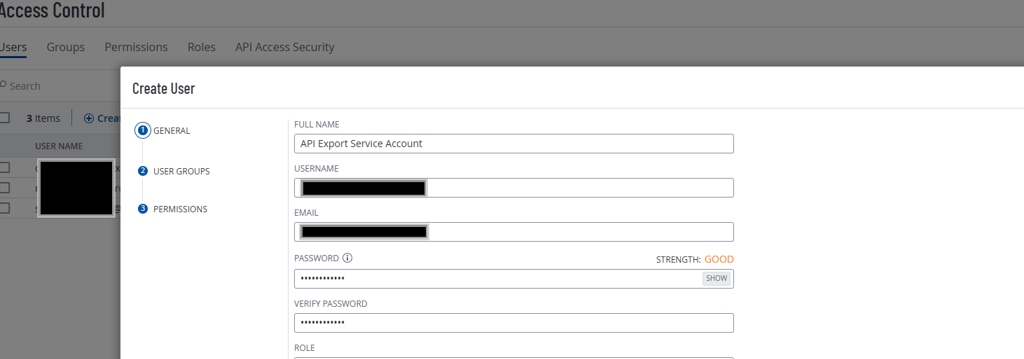
Enter a unique Full Name and Username for the account.
-
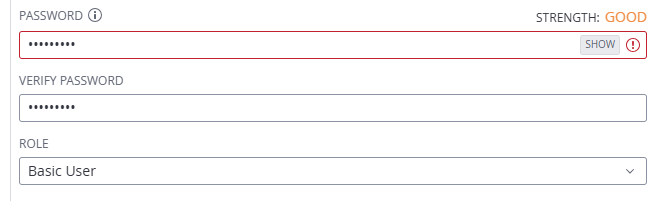
Enter your Email address and create a Password for the account.
-
Open the Role drop-list and select Basic User.
-
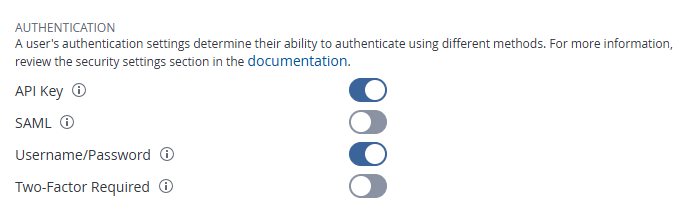
In the Authentication section, enable API Key and Username/Password.
-
Click Next.
-
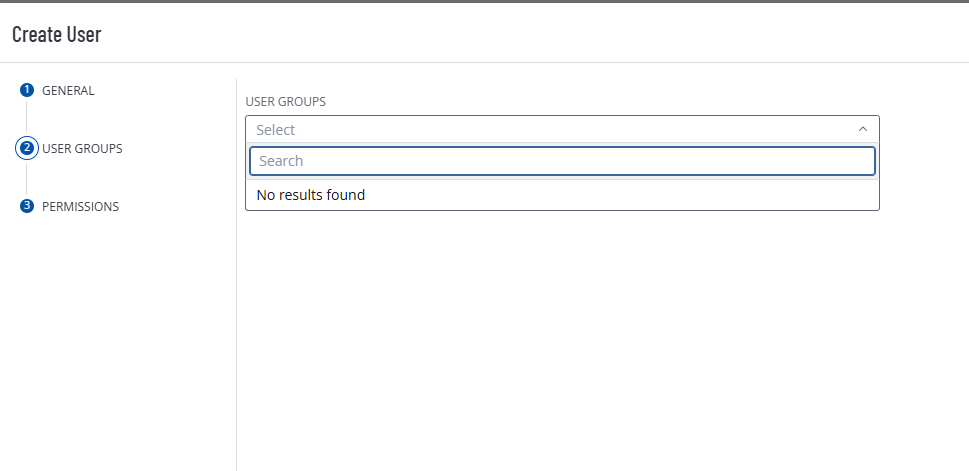
(Optional.) If the user needs to be added to a group, select the group from the dropdown.
Otherwise, click Next to continue.
-
If API-accessible permissions are already created, select an existing permissions set from the drop-list and click Save.
If you need to create a new set of permissions, click Save to create the user, then proceed to the Create Permissions section below.
Generate API Keys
The following steps outline the process of creating your API keys with the new user account. From the front page of the Tenable portal:
-
Click the Settings (gear icon) at the top right corner of the interface.
-
Under Access Control, select Users.
-
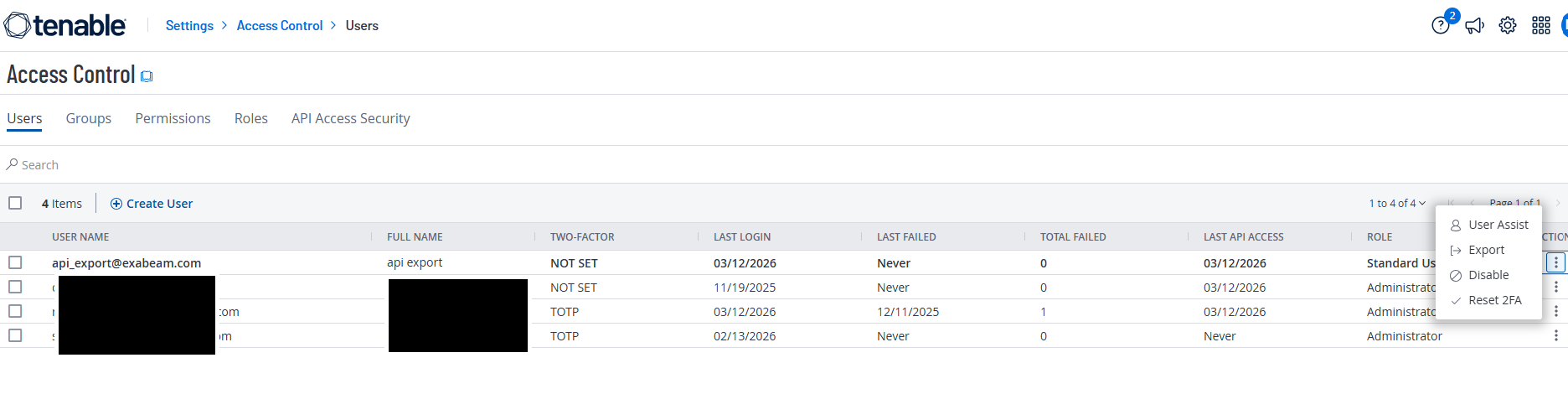
Select the newly-created (or pre-existing) user from the Users list.
-
Click User Assist.
-
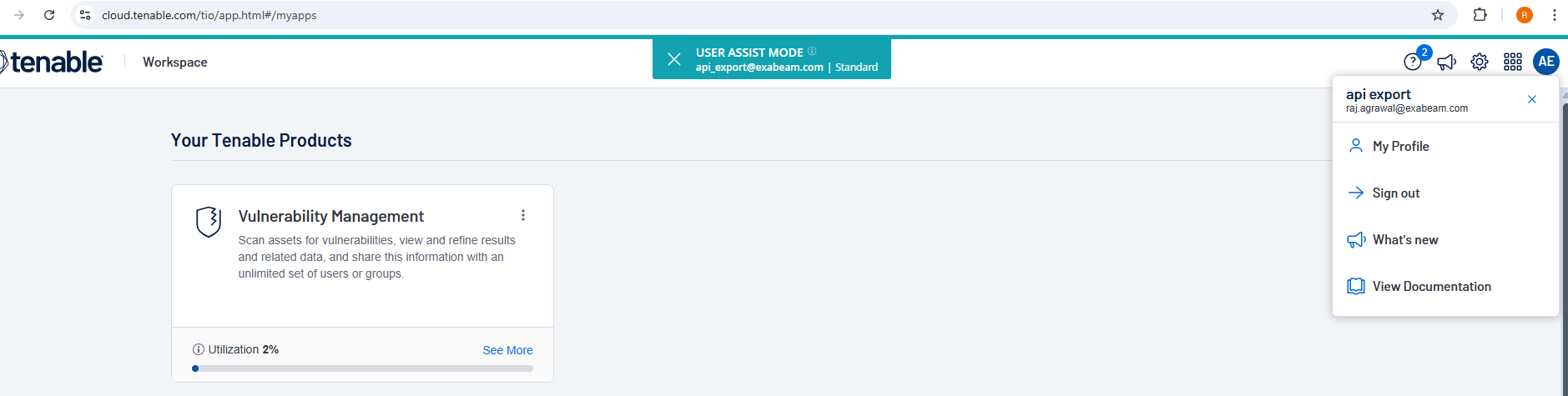
In User Assist mode, click the profile icon in the top right corner.
-
Select My Profile.
-
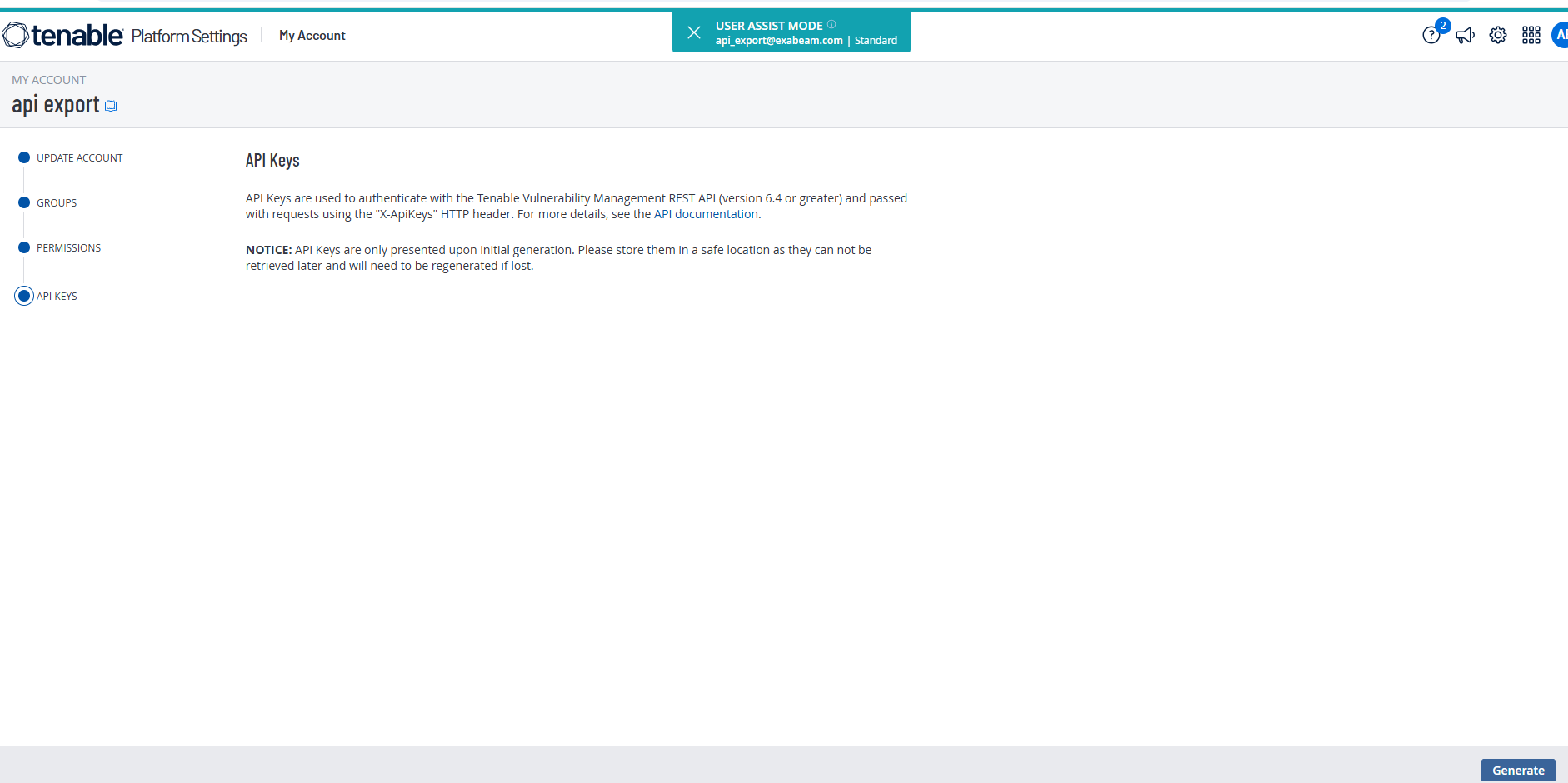
Click the API Keys tab.
-
Click Generate.
This action replaces any pre-existing keys for the user.
-
Copy the Access Key and Secret Key to a secure location, such as a notepad document on your machine.
The Secret Key will never be shown again after you leave this page. Be sure to store these keys securely for future use.
Create Permissions (Optional)
This section is only needed if a API-accessible permissions set has not already been created in the Tenable portal.
To create a new set of permissions, from the front page of the Tenable portal:
-
Click the Settings (gear icon) at the top right corner of the interface.
-
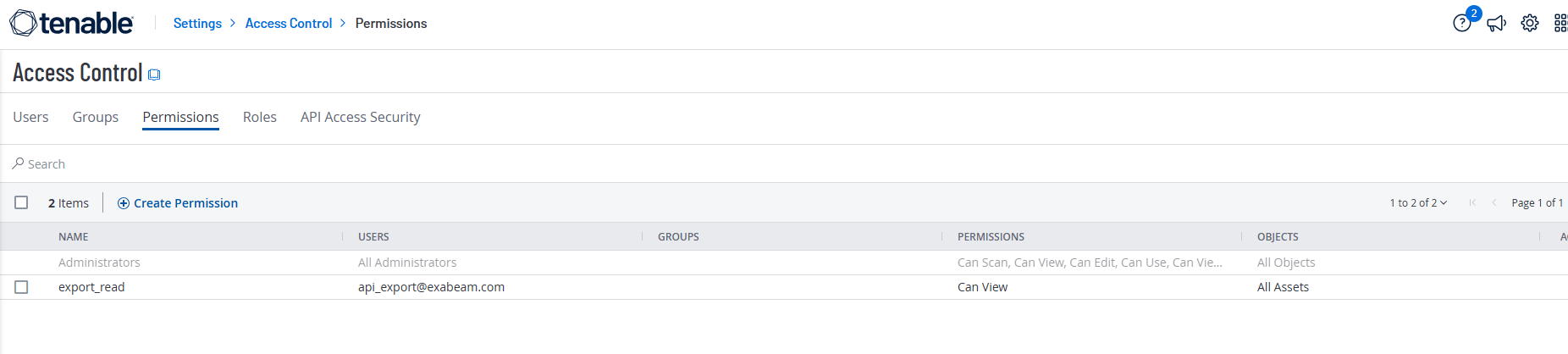
Under Access Control, select Permissions.
-
Click + Create Permission.
-
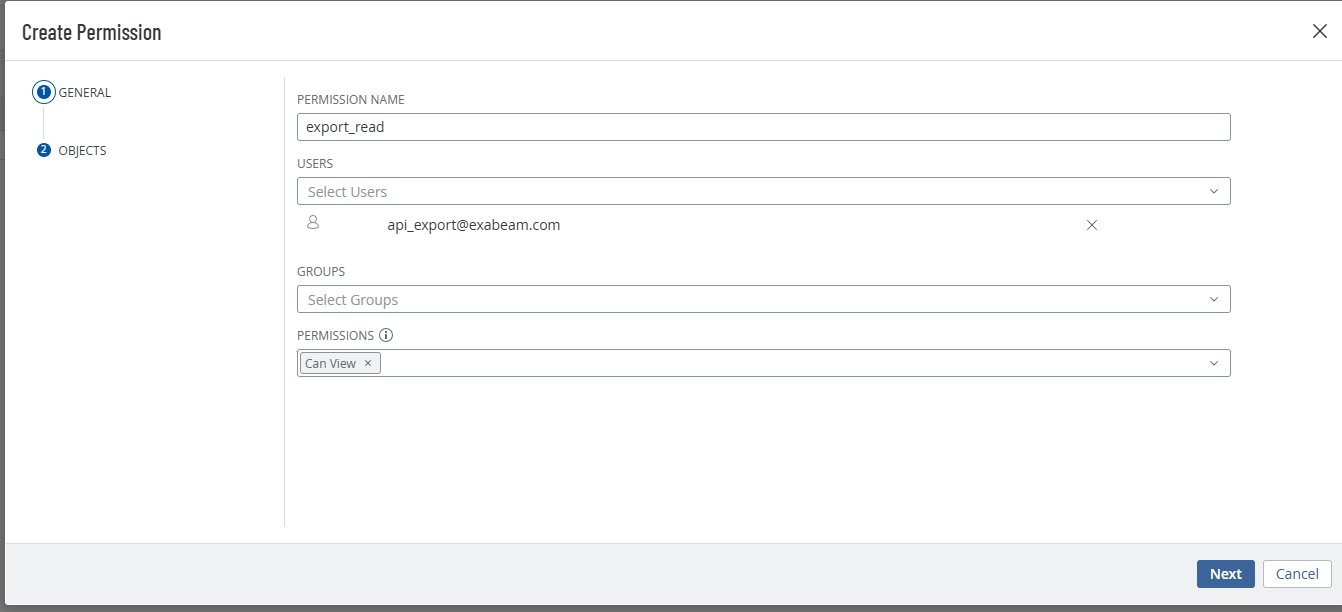
Fill out the required fields with a minimum permission of "Can View"
-
Add your newly created (or pre-existing) user to this permission set.
-
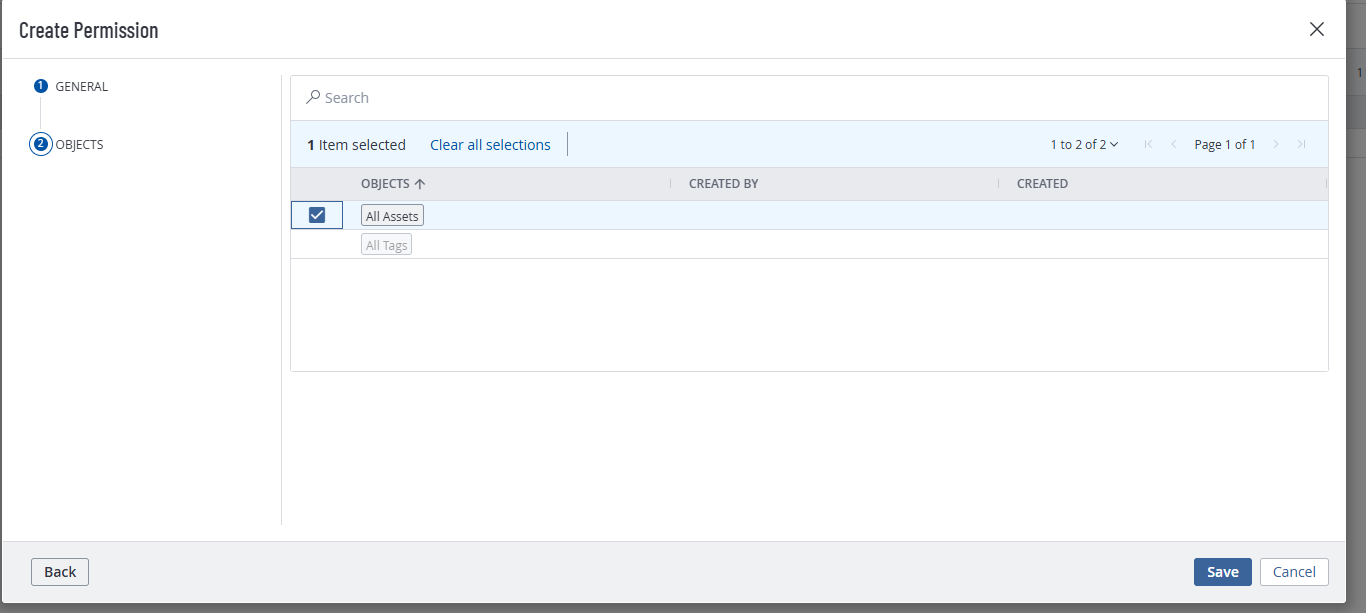
Select the required objects to which this permission should be applied.
Additional Resources
For detailed information about permissions and access control, please refer to the Tenable Permissions Documentation.