This guide outlines the procedures required to enable two-factor authentication and create API keys in preparation to collect Box logs via the Open Collector.
You must have a Box administrator account in order to complete the steps in this guide.
Enable Two-factor Authentication
Before you configure the Box Beat, you must enable two-factor authentication for the Box account. To enable two-factor authentication:
-
Log in to the Box account by accessing https://app.box.com/account.
-
Click Account Settings, then Account, then Authentication.
-
Select Require 2-step verification to protect your account.
For more information, see the Box Documentation.
-
Enter a mobile phone number to enable the two-factor authentication and click Continue.
Obtain the JSON File by Creating a Box Platform App
Box APIs are authenticated via application keys using JSON Web Tokens (JWT) to allow server-to-server authentication. JWT uses a public key pair to verify the application's permissions. You must create a Box platform app to obtain the JSON file to use while configuring the Box Beat.
To create a Box app:
-
Log in to the Box developer console.
-
On the My Platform Apps page, click Create Platform App.
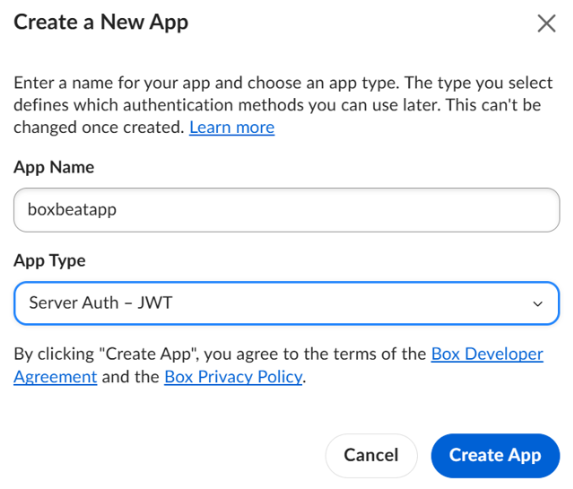
The Create a New App pop-up appears. -
Enter a unique App Name.
-
Open the App Type drop-list and select Server Auth - JWT.
-
Click Create App.
-
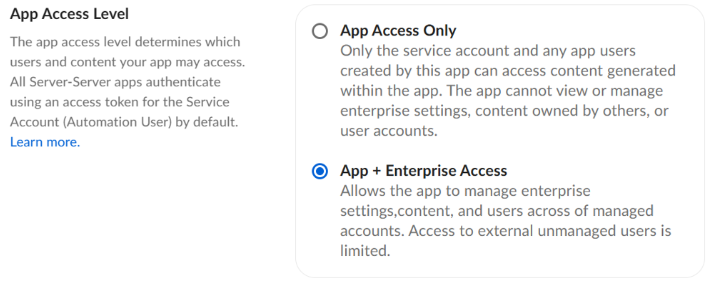
Under App Access Level, select App + Enterprise Access.
-
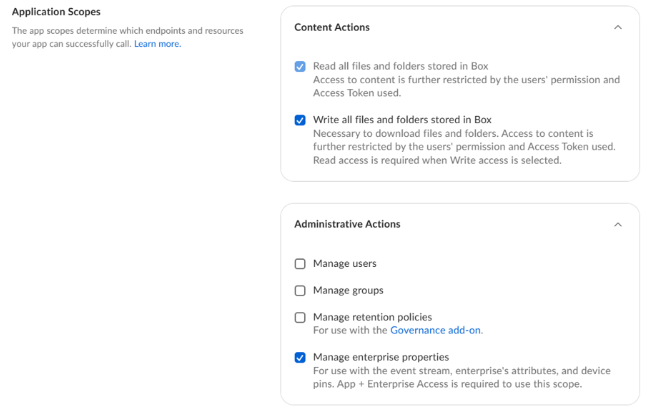
Under Application Scopes, select the following options:
-
Read all files and folders stored in Box
-
Write all files and folders stored in Box
-
Manage enterprise properties
-
-
Ensure that the options in the Advanced Features section are disabled.
If enabled, these options would interfere with the authentication process. -
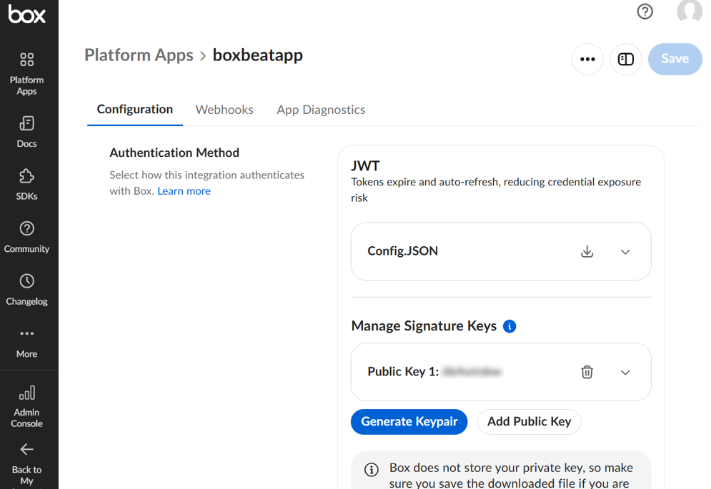
In the Add and Manage Public Keys section, click Generate a Public/Private Keypair to download a JSON configuration file.
You will need to complete two-factor authentication to generate the keys.
-
Save the JSON configuration file to your machine.
Use this data while configuring the Box cloud collector.
Once this screen is closed, you will not have access to your JWT and keypair. Ensure these are saved in a secure location.
-
Click Save Changes.
-
In the Authorization tab, click Review and Submit to submit the App for Authorization to the Box Administrator and thereafter get the app authorized by the Box Administrator.
The request is submitted for Box administrator's approval. -
To avoid test connection failure, ensure that you create a request to authorize the app, and get the request approved by the Box administrator.
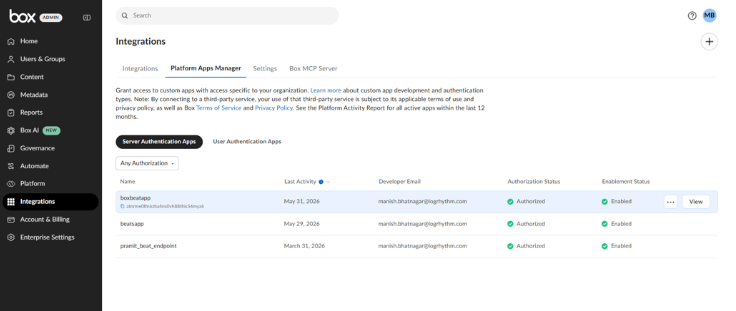
The Box administrator can authorize the app by accessing the Box administrator account on https://app.box.com/account, and then navigating to Admin Console > Integrations > Platform Apps Manager. -
Check that the Box Account Admin user has granted the permissions that you requested for the Box Platform App.