
This section provides instructions to initialize Carbon Black Cloud Beat after configuration. It is primarily focused on the alert log to be pulled from the Carbon Black Cloud console.
Prerequisites
-
Open Collector is installed. If you have not already installed it, follow the instructions in the Open Collector Installation and User Guide, and then return to this topic.
-
Carbon Black Cloud console hostname. You should have received the hostname when you purchased the Carbon Black Cloud platform.
For more information on hostname:
https://developer.carbonblack.com/reference/carbon-black-cloud/authentication/#hostname
.
You must omit the https:// from the hostname for the beat to work properly. If you do not do this, the beat will continuously restart.
-
Carbon Black Cloud console API Credentials and Organization Key. If you do not have these, follow the instructions here Configure API Access on Carbon Black Cloud Console, and then return to this topic.
-
A sensor installed on one of your machines to sync the alerts on the Carbon Black Cloud console. This sensor can be installed using the sensor option provided on the Carbon Black Cloud console under Endpoints.
-
The following port is open:
Direction
Port
Protocol
Source
Outbound
443
HTTPS
carbonblackcloudbeat
Initialize Beat
-
Confirm Open Collector is running:
. /lrctl statusYou should see the open_collector and metrics versions:

If Open Collector is not running correctly, see
Troubleshoot the Open Collectorin the Open Collector Installation and User Guide.
-
Start the Beat:
./lrctl carbonblackcloudbeat start
-
Enter the following details:
-
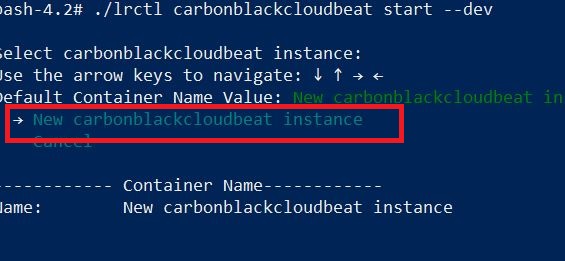
Select New carbonblackcloudbeat instance from the list.
-
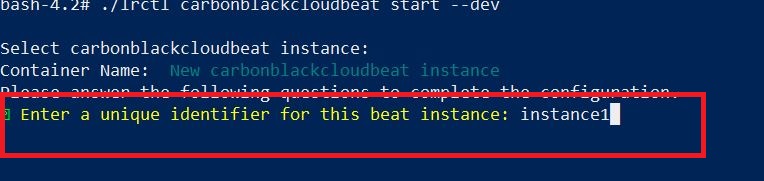
Enter a unique beat identifier for this carbonblackcloudbeat instance.
-
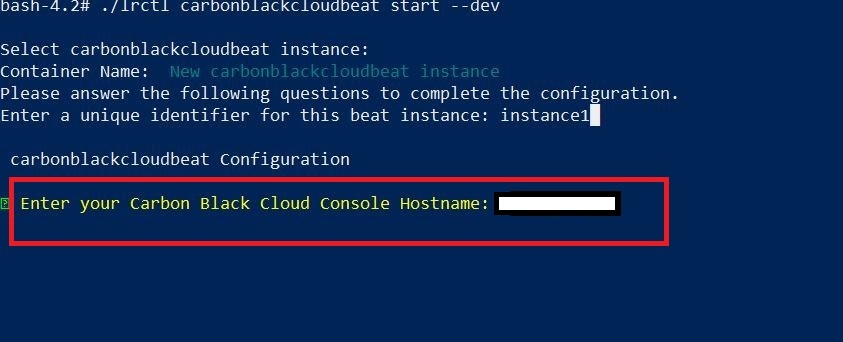
Enter the Hostname.
-
Enter the API ID.

For security purposes the API ID is stored in encrypted format.
-
Enter the API Secret Key.

For security purposes the API Secret Key is stored in encrypted format.
-
Enter the Organization Key.

For security purposes the Organization Key is stored in encrypted format.
The carbonblackcloudbeat service started message appears.

-
-
Check the status of the service:
./lrctl carbonblackcloudbeat status
Default Config Values for the Carbon Black Cloud Beat:
|
S.No |
Field Name |
Default Values |
|---|---|---|
|
1 |
heartbeatinterval |
60s |
|
2 |
heartbeatdisabled |
false |
|
3 |
period |
2s |
|
4 |
apiID |
User Provided |
|
5 |
secretKey |
User Provided |
|
6 |
numbackdaysData |
7 Number of back days must be a non-negative number.
|
|
7 |
orgKey |
User Provided |
|
8 |
hostname |
User Provided |
|
9 |
limit |
1000 Supported limit range is 100-1000
|
There can be a slight delay (up to 1 min) in syncing alerts due to a network issue depending upon the sensor sync alert on Carbon Black Cloud.