
This section provides instructions for initializing the AWS S3 beat after configuration.
Prerequisites
-
Open Collector is installed. If you have not already installed it, follow the instructions in the Open Collector Installation and User Guide, and then return to this topic.
-
AWS queues are set up.
-
The event on the bucket is configured so that the actions performed on the bucket are sent to the queue from which the s3beat service is listening.
-
The queues and bucket are on the same region, and the proper permission has been granted to the queue.
-
The following port is open:
Direction
Port
Protocol
Source
Outbound
443
HTTPS
AWSS3 Beat
Initialize the Beat
-
Confirm Open Collector is running:
./lrctl statusYou should see the open_collector and metrics versions:

If Open Collector is not running correctly, see
Troubleshoot the Open Collectorin the Open Collector Installation and User Guide.
-
Start the beat:
./lrctl s3beat start
-
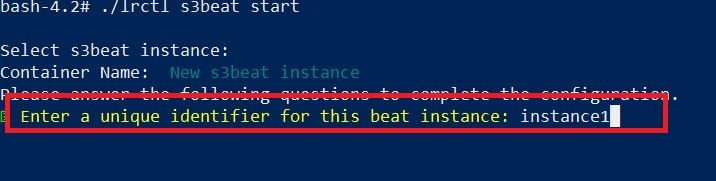
Select a new s3beat instance and enter a unique identifier for this instance.
-
Tell the service whether you have deployed the s3beat service in AWS.
-
If you enter N, it is assumed that deployment is done on-premise (not in AWS), and the user must enter security credentials.

-
Enter the access key of your s3beat AWS application, which you should have saved from the Configure AWS S3 section.
The secret access key and access keys are saved in encrypted format.

-
Enter the s3beat secret access key of your s3beat AWS application, which you should have saved from the Configure AWS S3 section.

-
-
If you enter Y, it is assumed that the deployment is done in AWS, so security credentials are not required.
-
-
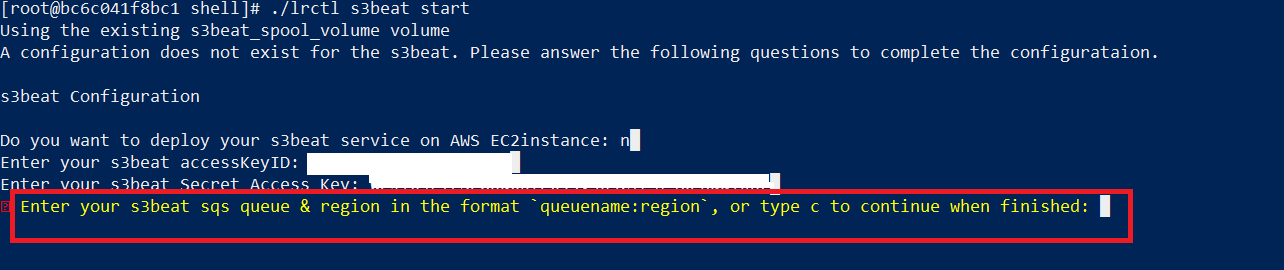
Enter your s3beat sqs queue and region in the format queuename:region. You can configure multiple queuename and region combinations.
-
To save the configuration, type c.

-
If you want to enable cross-account access of some objects, type y. Otherwise, press Enter and go to the next numbered step.

-
Enter your s3beat ARN for the assume role cross account access in the mentioned format. You can enter multiple ARNs. When you have finished entering your ARNs, type c.

-
-
If you want to provide multiline pattern regex, type y. Otherwise, press Enter.

-
The configuration has been saved and the service has started successfully.

-
Check the status of the service:
./lrctl s3beat status
Default Config Values for S3Beat:
|
S. No. |
Field Name |
Default Value |
|---|---|---|
|
1. |
AWSAccessKeyID |
User Provided |
|
2. |
HeartbeatInterval |
5m0s |
|
3. |
HeartbeatDisabled |
false |
|
4. |
AWSSecretAccessKey |
User Provided |
|
5. |
traits.inclusion |
Blank |
|
6. |
QueueList |
User Provided |
|
7. |
traits.exclusion |
Blank |
|
8. |
MaxKeys |
0 |
|
9. |
AWSFlag |
false |
|
10. |
multiline.pattern |
User Provided |
|
11. |
multiline.negate |
false |
|
12. |
multiline.match |
after |
|
13. |
assumeRoleArn |
This flag is the Assume role ARN from AWS for cross account access in the format: arn:aws:iam::{Account-A-ID}:role/{Assume_role_name}
|
|
14. |
assumeRoleFlag |
false This flag enables user to access cross account logs retrieval using Sts:AssumeRole for s3beat deployment.
|
|
15. |
stsCredsExpirationTime |
1hr This flag sets the maximum session duration of IAM role assigned to ARN used for Assume role.
|
For commands to inspect or edit a configuration, see the configuration information in
Open Collector Installation Tips.