
Layouts consist of the look and feel for how widgets appear within the Personal Dashboard and Investigate. With LogRhythm Layouts you can create and save multiple layouts within Personal Dashboard and Investigate to best model the needs of the audience, apply layouts at will to show the data in a format suitable to the immediate audience, and define a default that is used when a new view is opened. In addition, for saved investigations, you can specify the layout to use every time that investigation is run.
Layouts Menu
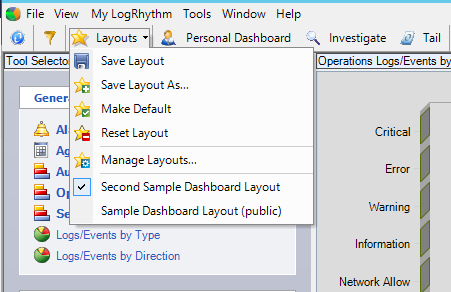
When you run Personal Dashboard or Investigator, the Layouts button and menu are available on the main toolbar.
The Layouts menu includes the following information:
-
Save Layout
-
Save Layout As
-
Make/Clear Default
-
Reset Layout
-
Manage Layouts
-
Layouts.
-
Active Layout. A check mark appears before the name of the active layout.
-
Public Layouts. Are denoted with the word (public) in parenthesis after the name.
-
Default Layout. Is denoted by the word (default) in parenthesis after the name.
-
Private Layout. Has no label.
-
Layout Manager Grid
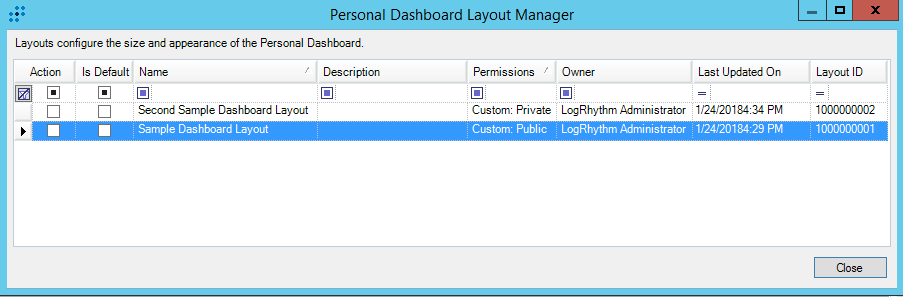
The Layout Manager grid contains the following fields:
|
Field |
Description |
|---|---|
|
Action |
The check box that indicates which layouts are selected. |
|
Is Default |
Indicates the default layout. Can be modified directly in the grid or from the Layouts menu in the main toolbar. |
|
Name |
The name given to the layout by the owner. |
|
Description |
The description given to the layout by the owner. |
|
Permissions |
The level of permissions for the layout (Public All or Private). |
|
Owner |
The person who created the layout. |
|
Last Updated On |
The date the layout was last updated. |
|
Layout ID |
Unique identifier for the Layout record. |