
Prerequisites
-
SentinelOne SKU Complete with Deep Visibility running.
-
SentinelOne Agent version 2.8 or later.
-
Public IP to run Kafka Beat (SentinelOne needs its Kafka client to be running on an external IP).
-
Kafka bootstrap server URL. Contact SentinelOne Support for this.
-
SASL mechanism used on Kafka server. This should be given by SentinelOne Support. As per the SentinelOne documentation it supports SASL SCRAM-SHA-512.
-
Login credentials (username and password). Contact SentinelOne Support for this.
-
Kafka topic. Contact SentinelOne Support for this.
-
Kafka server certificate, if host verification is enabled on Kafka server. Contact SentinelOne Support for this.
-
Open Collector is installed. If you have not already installed it, follow the instructions in the Open Collector Installation and User Guide, and then return to this topic.
-
The following port is open:
Direction
Port
Protocol
Source
Outbound
443
HTTPS
kafkabeat
Initialize the Beat
-
Confirm Open Collector is running:
./lrctl status
You should see the open_collector and metrics versions:

If Open Collector is not running correctly, see Troubleshoot the Open Collector in the Open Collector Installation and User Guide.
-
Start the Beat:
./lrctl kafkabeat start
-
Enter the following details:
-
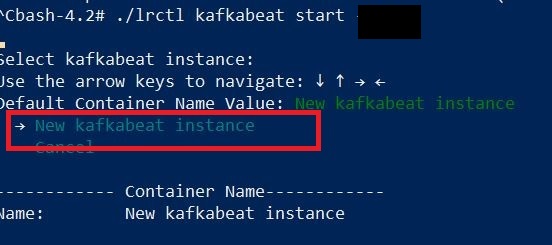
Select New kafkabeat instance from the list and hit Enter.
-
Enter the unique beat identifier for this kafkabeat instance and hit Enter.

-
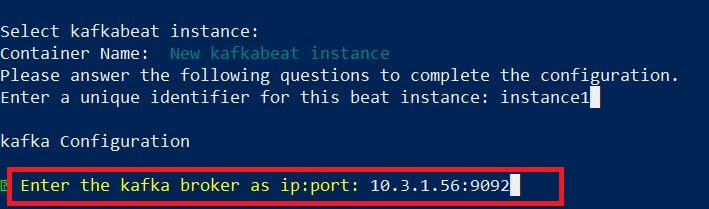
Enter the Kafka broker as: KAFKA_SERVER_IP:KAFKA_SERVER_PORT. (Enter your Kafka bootstrap server URL that you got from SentinelOne Support.)
-
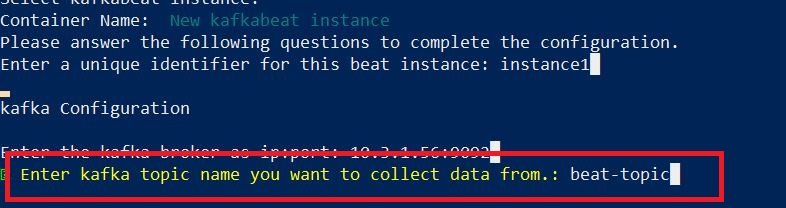
Enter the Kafka topic name from which you want to collect data. (Enter your Kafka topic name you got from SentinelOne Support.)
-
Enter the consumer ID for this beat instance. You can always change the consumer ID by using config edit to fetch messages from the beginning.

-
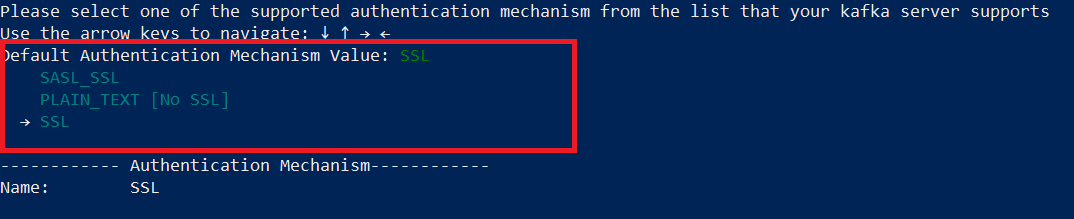
Select one of the supported authentication mechanism from the list that your Kafka server supports. (Select SASL_SSL, as SentinelOne supports SASL_SSL authentication.)
-
Confirm if you want to skip host verification on kafkabeat. (If you choose No, then you have to upload the certificate file in the following steps.)

-
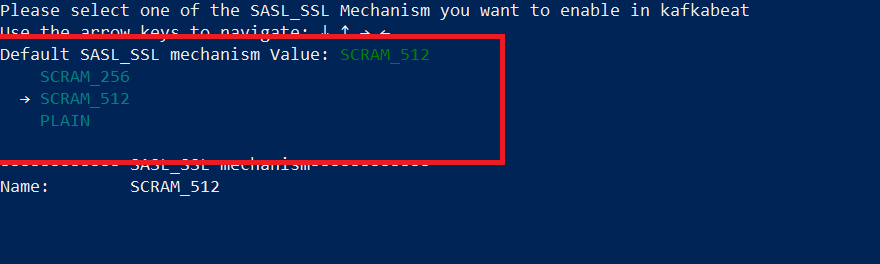
Select one of the SASL_SSL Mechanism you want to enable in kafkabeat. (Select SCRAM_512, as SentinelOne supports SCRAM_512 SASL mechanism.)
-
Enter username for SASL authentication. (Enter username that you got from SentinelOne Support.)

-
Enter password for SASL authentication. (Enter password that you got from SentinelOne Support.)

-
Confirm if you want to enable SentinelOne parsing support in kafkabeat. (Choose Yes, as SentinelOne sends compressed protobuf which needs to be parsed.)

The Kafka Beat has started message appears.
-
Check the status of the service:
./lrctl kafkabeat status
-