
Once Collectors and Pipelines have been setup in OC Admin, collection can be configured in the Pipelines List.
Collection Configuration Actions
To view collection configuration actions, from the main page:
-
Click Pipelines in the menu bar.
-
Click the Open button next to the pipeline to be configured.
-
In the Collection section, click the three-dot menu at the top-right.
The following actions are available:Action
Description
Edit Collection
Refer to the
Add and Edit Collection Configuration
section for more information.
Download Collection configuration as a Shipper configuration file
A file is downloaded containing the collection configuration.
Copy Collection configuration in Shipper's format to Clipboard
The collection configuration is copied to the clipboard rather than downloaded.
Share and Import Collection Configuration
Import a new OC Admin collection configuration file, or share one to the Marketplace.
Refer to the Share and Import Collection Configuration section for more information.
Delete Collection Configuration
Remove the collection configuration from OC Admin. A prompt will confirm this action.
Add and Edit Collection Configurations
To add a new collection configuration or modify an existing one, from the Pipelines List:
-
Click the Open button next to the pipeline to be configured.
-
In the Collection section, click the three-dot menu at the top-right.
-
Click Edit Collection.
-
Select the Collection Shipper and Collection Method.
Refer to the Shippers section of the OC Admin Open Collectors topic for more information on configuring shippers.
-
Click the OK button.
-
Review the three groups of Collection Parameters:
By default, the Required group of Collection Parameters, which is always the one at the top of the list, is already expanded:
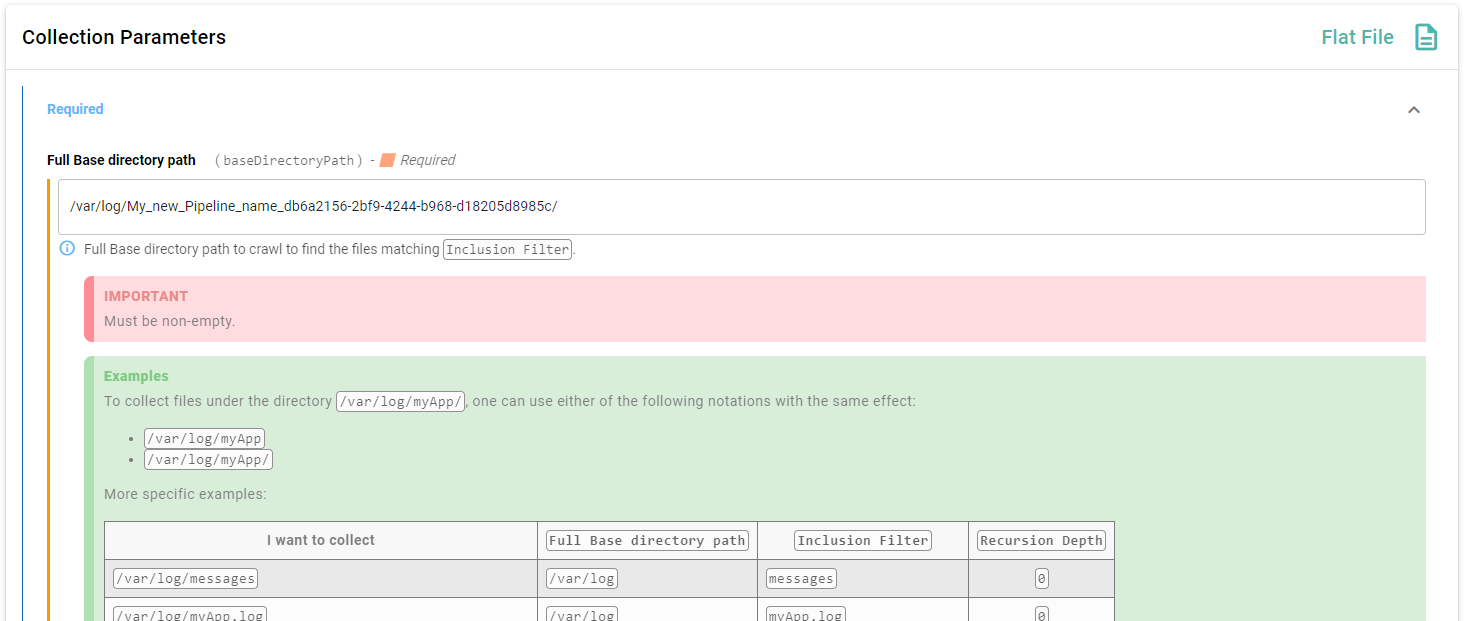
-
Fill in required fields, as well as all the ones that are relevant to the pipeline you are configuring.
Required and read-only fields are described in the two sections below.
-
Click the Save button in the navigation bar.
-
Click the Return to Properties button in the navigation bar when the configuration is complete.
The Collection panel of the Pipeline Properties page now displays the configuration information:
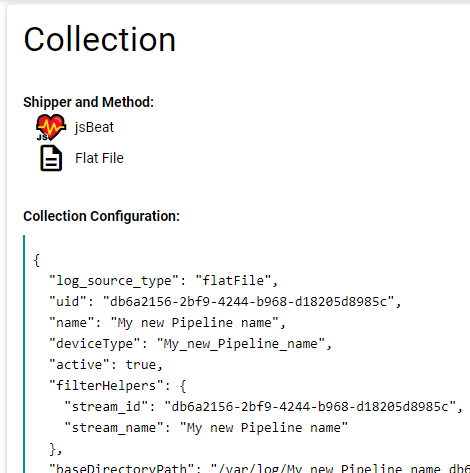
Required Fields
Required fields in a collection configuration are flagged with two visual markers:
-
an orange icon and the word Required on the right side of the parameter's name line.
-
an orange vertical bar on the left of the whole parameter block.
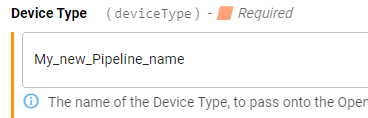
Certain fields are marked as required outside of the Required group of collection parameters.
These are only required inside of the collection parameters to which they belong.
Read-Only Fields
Read-Only fields are flagged with a single visual marker:
-
a grey icon and the words Read Only on the right side of the parameter's name line.
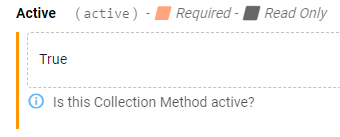
Share and Import Collection Configurations
To share or import an already-existing collection configuration, from the Pipelines list:
-
Click the Open button next to the pipeline to be configured.
-
In the Collection section, click the three-dot menu at the top-right.
-
Click Share and Import Collection Configuration.
-
Choose one of the following options:
Option
Description
Share as a Local File
Generate and download your already-configured collection configuration as an importable JSON OC Admin collection configuration file.
This file can then be imported in any other pipeline, either on the same OC Admin server or a different one.
Share via the Marketplace
Share your already-configured collection configuration with other OC Admin users as a pipeline template.
This allows any other OC Admin user to download it to complement an existing pipeline, or to create a new one from the template.
Refer to the Marketplace Considerations section below before sharing or downloading from the OC Admin Marketplace.
Import from Local File
Import a collection configuration using an OC Admin collection configuration file.
Import from Marketplace
Import a collection configuration that has been shared by another OC Admin user.
During the import, the identifiers contained in the collection configuration are transformed to be based on the identifiers within the pipeline (UID, name, etc.) into which it has been imported.
Marketplace Considerations
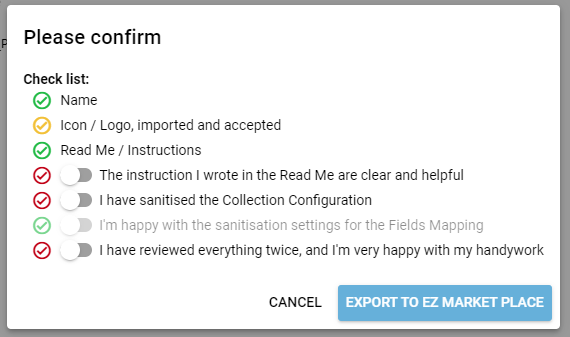
Before an upload to the online Marketplace occurs, you are prompted to:
-
Decide what to share (collection configuration only, fields mapping only, or both).
-
Ensure all configuration data has been sanitized and personal data has been removed.
-
If electing to share a fields mapping, decide which part of the mapping should be shared (field frequencies, field SIEM mapping, field modifiers, etc.).
-
Provide a meaningful name for the file.
-
Provide a logo for the file.
-
Complete the Read Me, based on the provided template (this allows users to follow step-by-step instructions to use your template).
-
Click Export to EZ Marketplace.
Once a Pipeline Template has been uploaded, it is marked as Pending Review, and will not be downloadable by other users until it has successfully passed review from LogRhythm staff, at which point it is marked as Visible.