
Prerequisites
The Google Workspace Admin SDK Reports API has several prerequisites, which can be found in the Google Admin SDK Documentation. Most importantly, for access to the Google Admin Console, you need:
-
A Super Administrator account to enable API Access; and
-
An admin account with the Reports Administrator privilege to create and grant permission to the application.
Create a Project
-
Open the Google API Console: https://console.developers.google.com
-
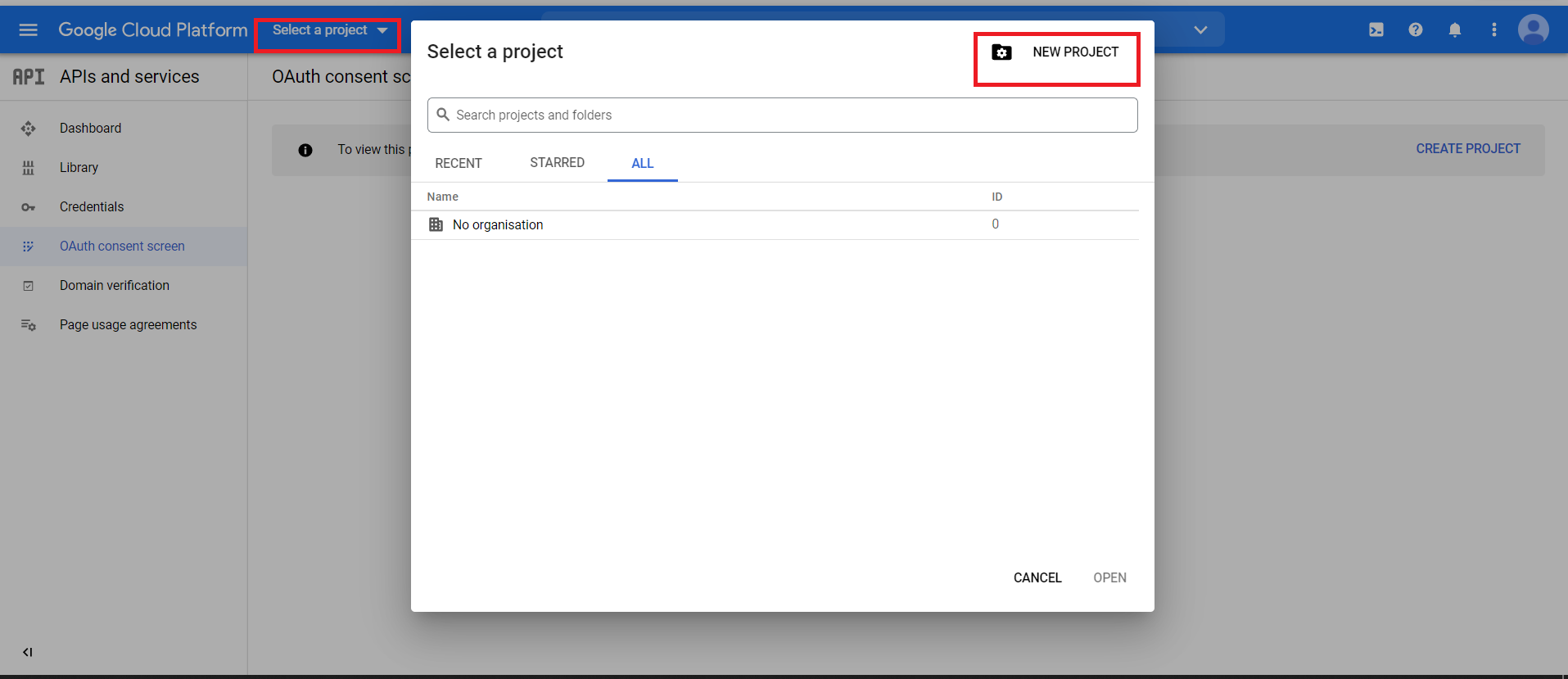
Open the Select a Project window, and then click New Project.
-
Give the project a name, such as "demo."
If you are familiar with Google APIs and projects, you can use an existing project.
-
(Optional) Edit the Project ID and Organization.
-
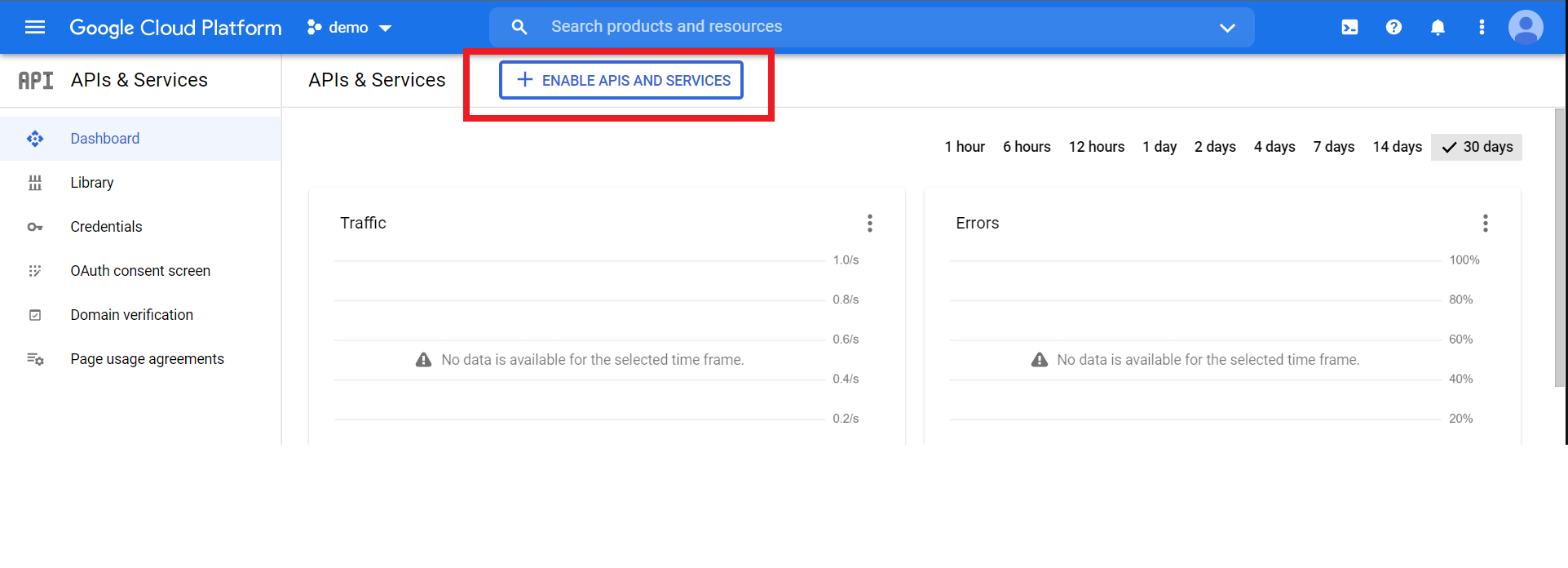
Click Enable APIs and Services.
-
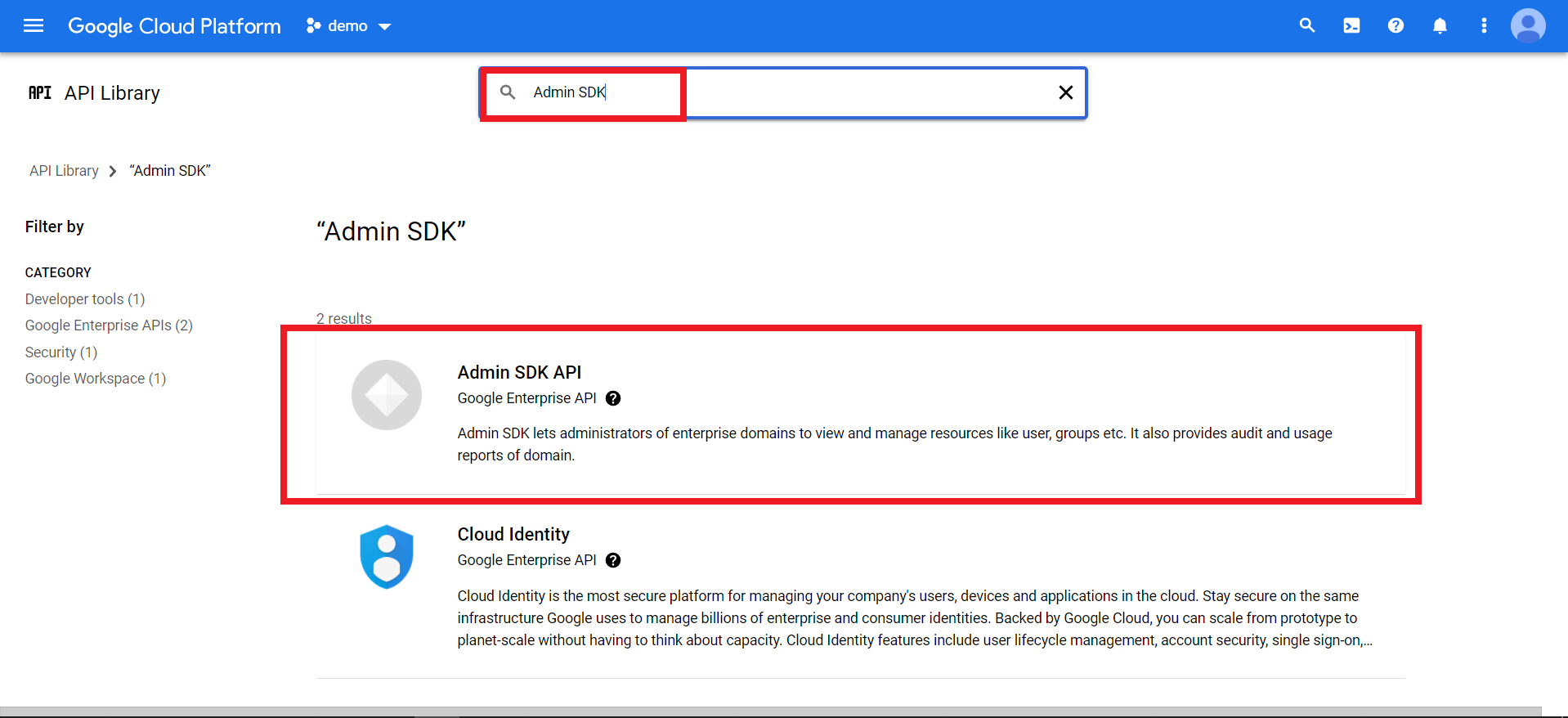
In the search bar, type Admin SDK.
-
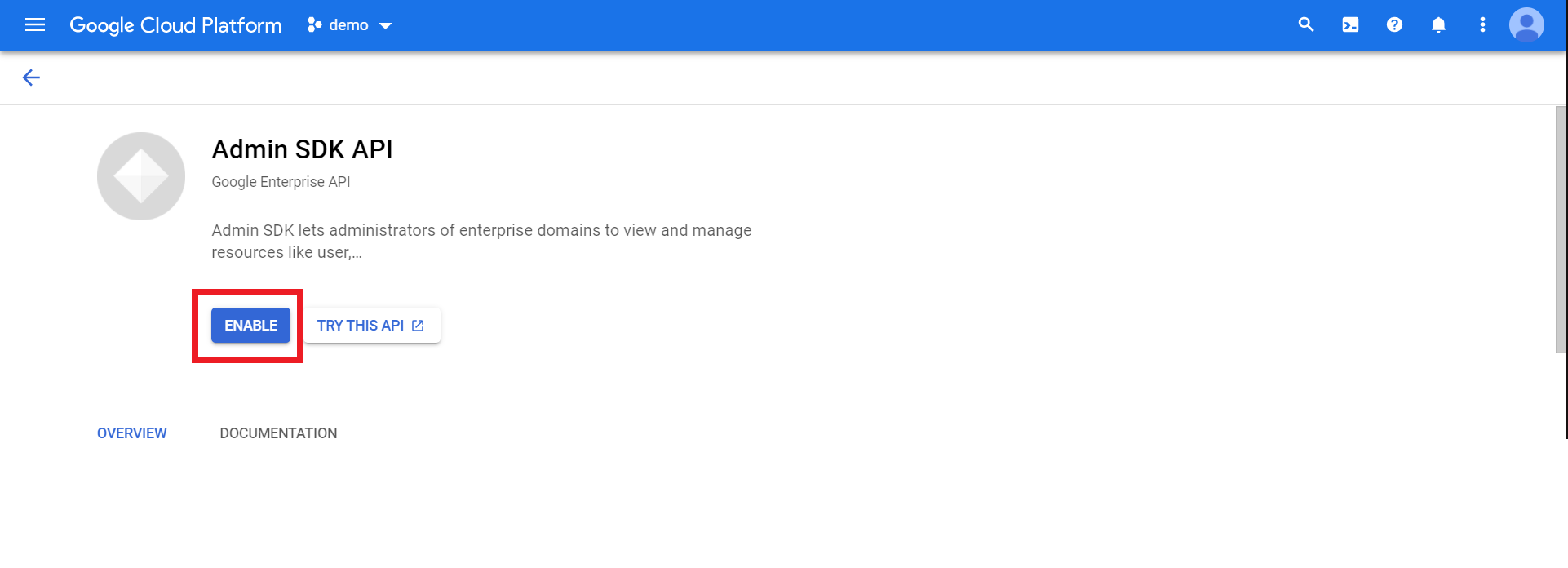
Click Admin SDK API, and then click Enable.
Create Credentials
-
Open the Google API Console: https://console.developers.google.com.
-
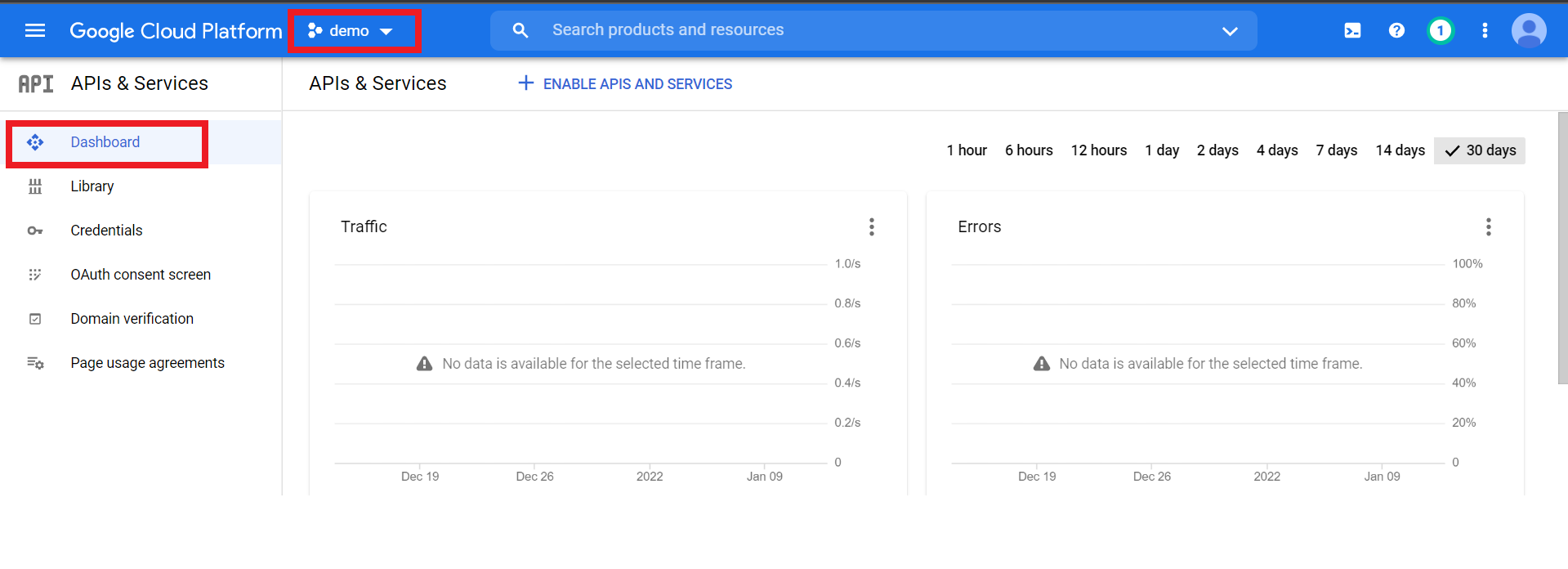
From the top-left menu, select your project (in the example below, "demo."
-
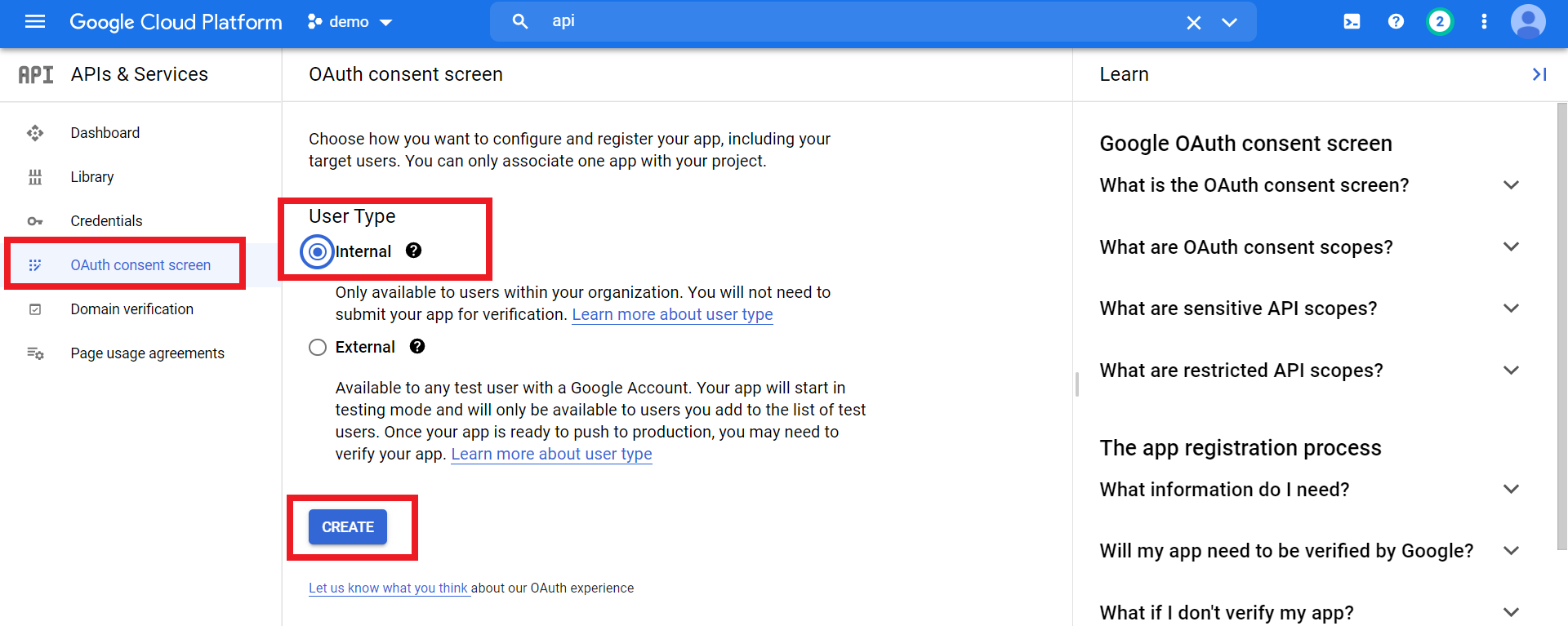
Click the OAuth Consent Screen tab, select Internal as the User Type, and then click Create.
-
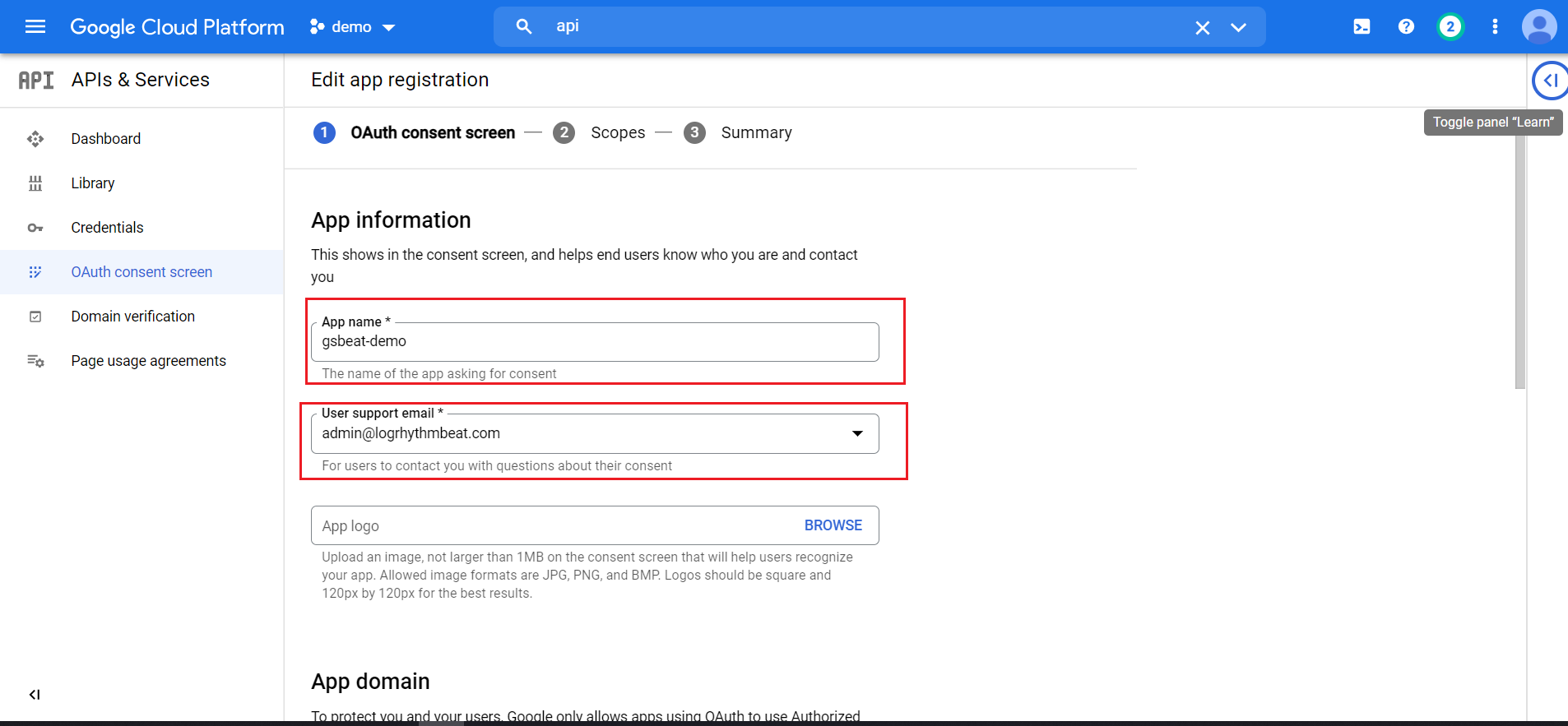
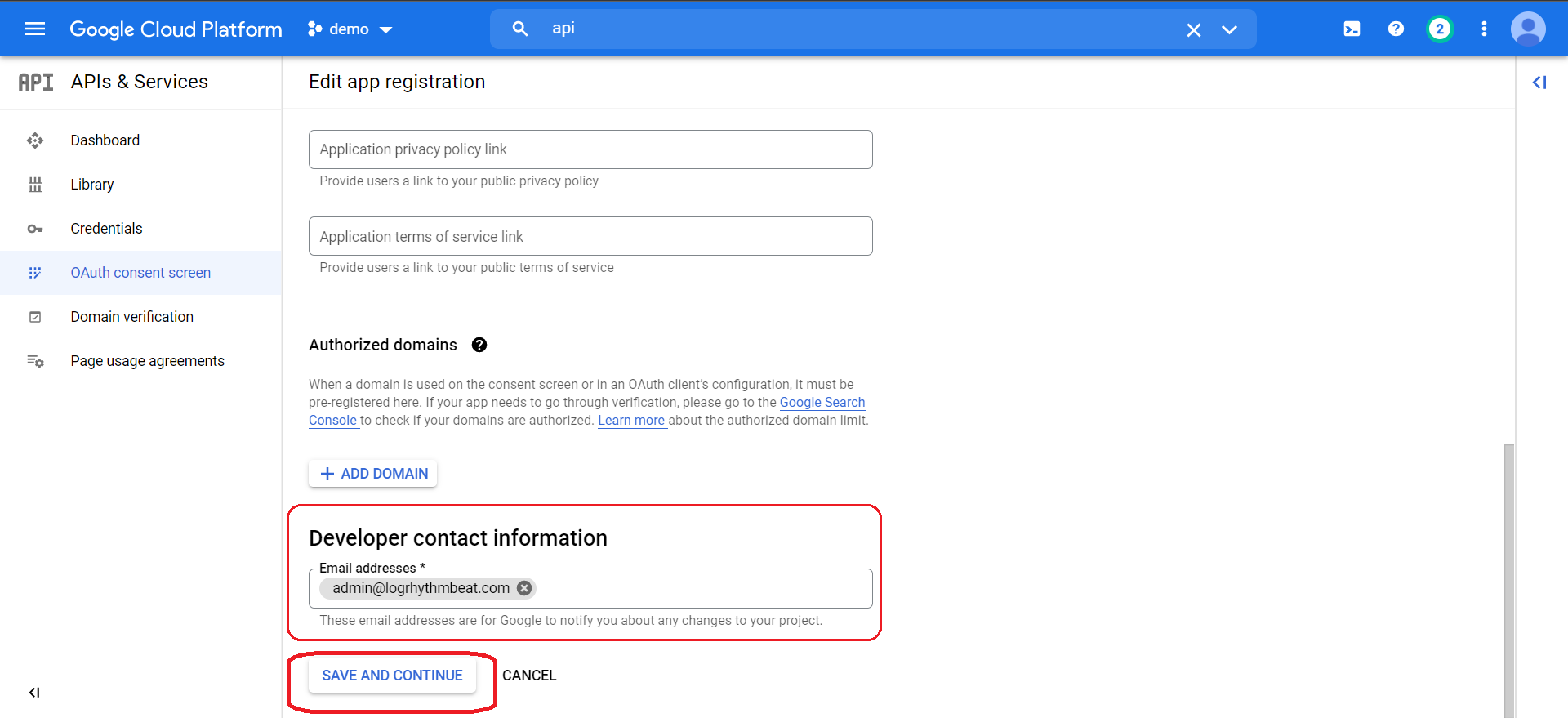
Enter the App Name, User Support Email, and Developer Contact Information on this page.
-
Click Save and Continue.
-
Click Add or Remove Scopes.
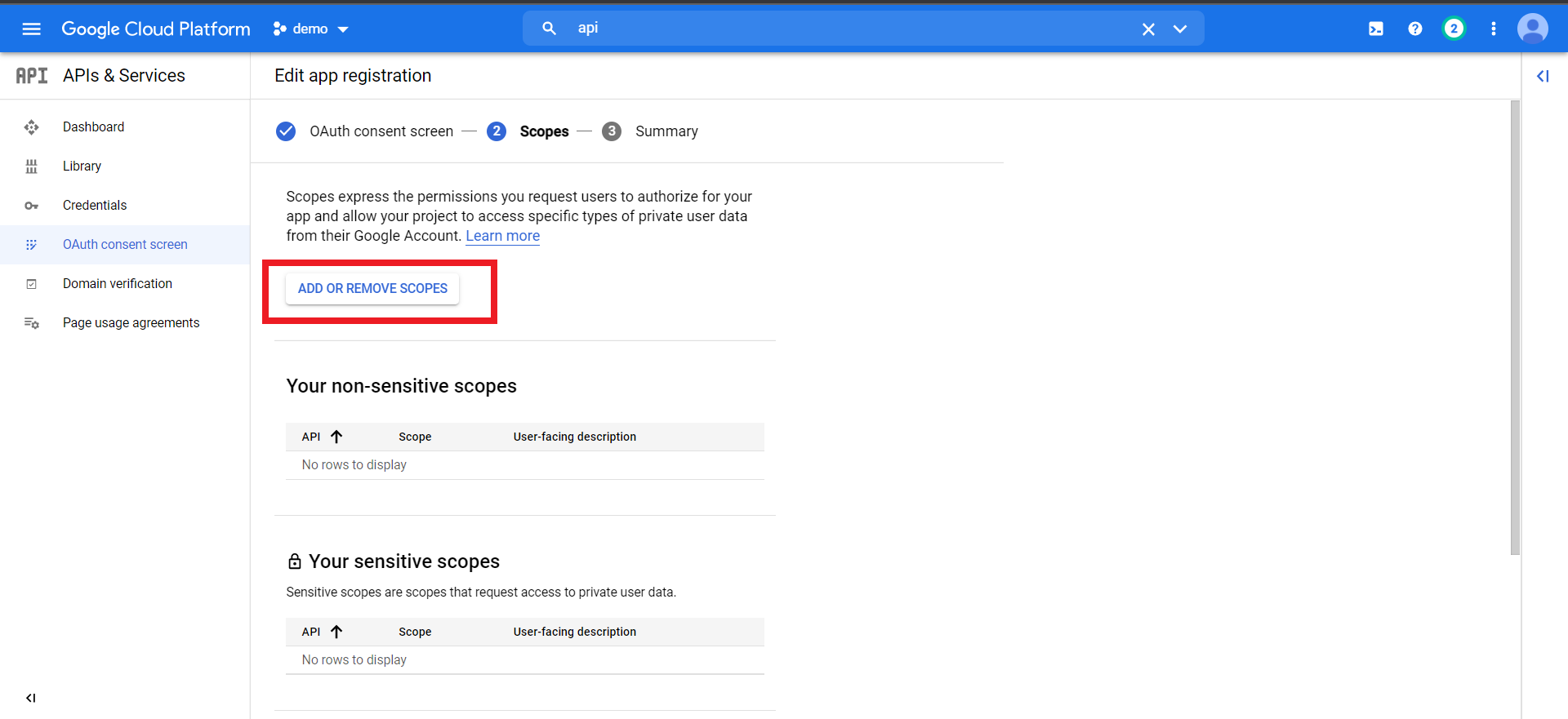
-
Click on the Filter field, select API, and then select Admin SDK API from the drop-down
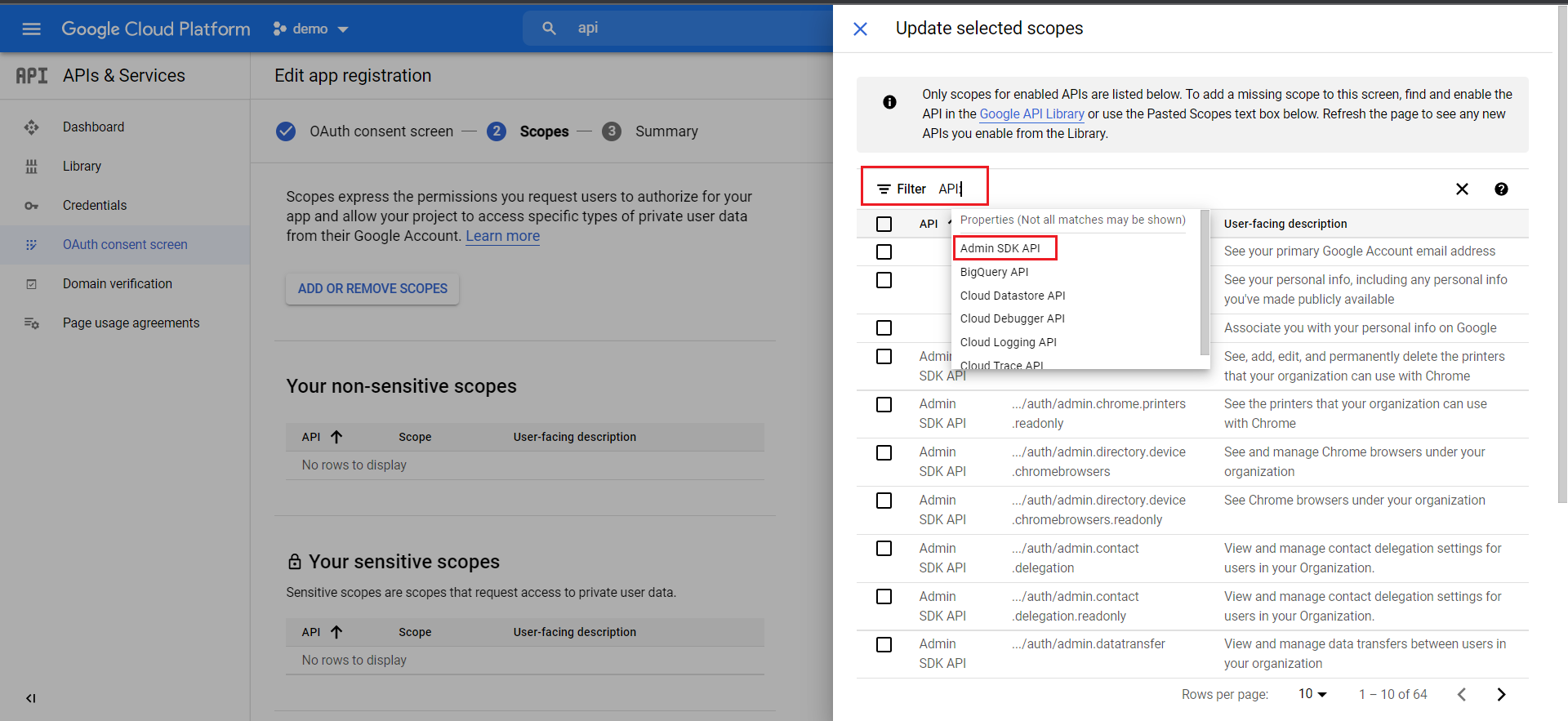
-
Click on the Filter field again, type Reports, hit enter, and select both of the listed APIs. Finally, click on Update to save the scopes.
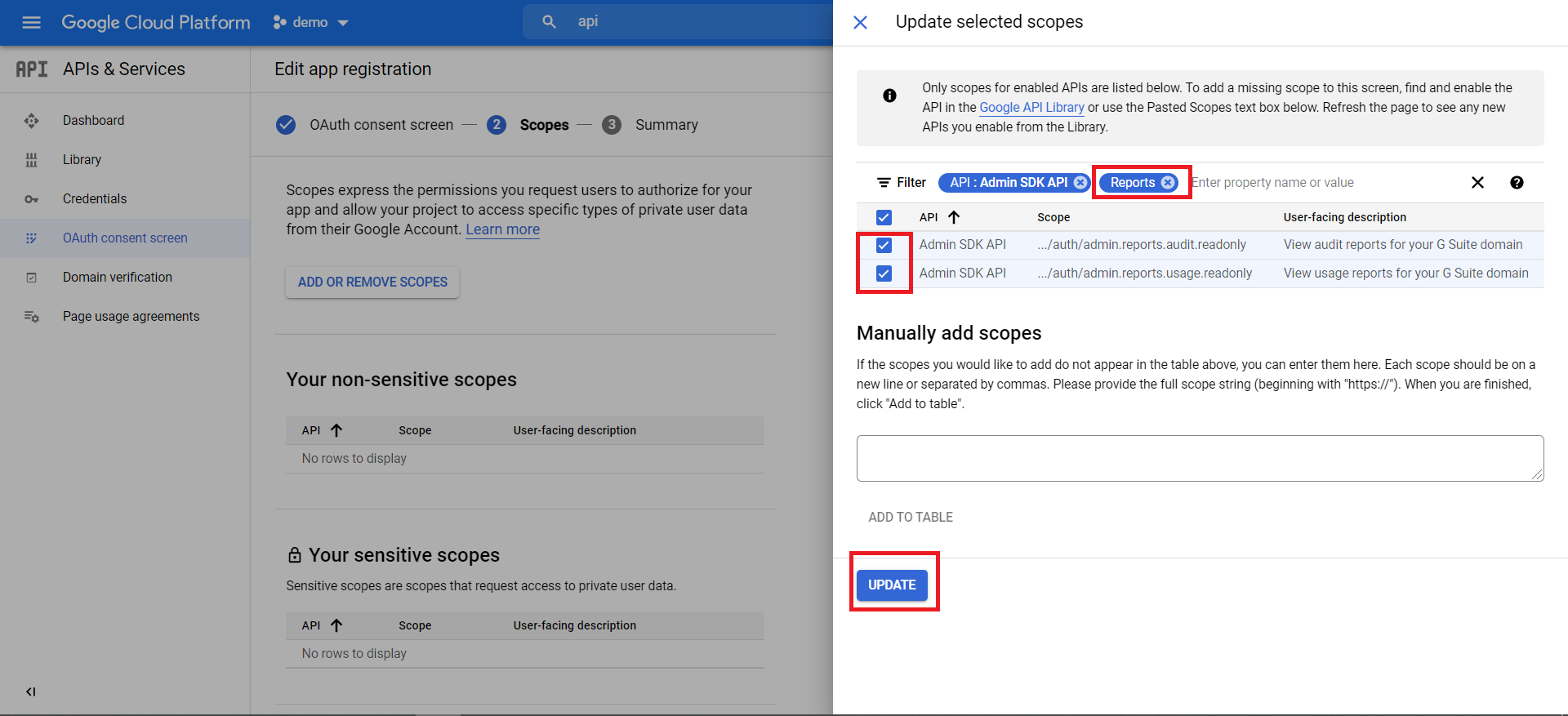
-
Newly added scopes will be shown on the dashboard. Click Save and Continue. Finally, click on the Credentials option in the left menu.
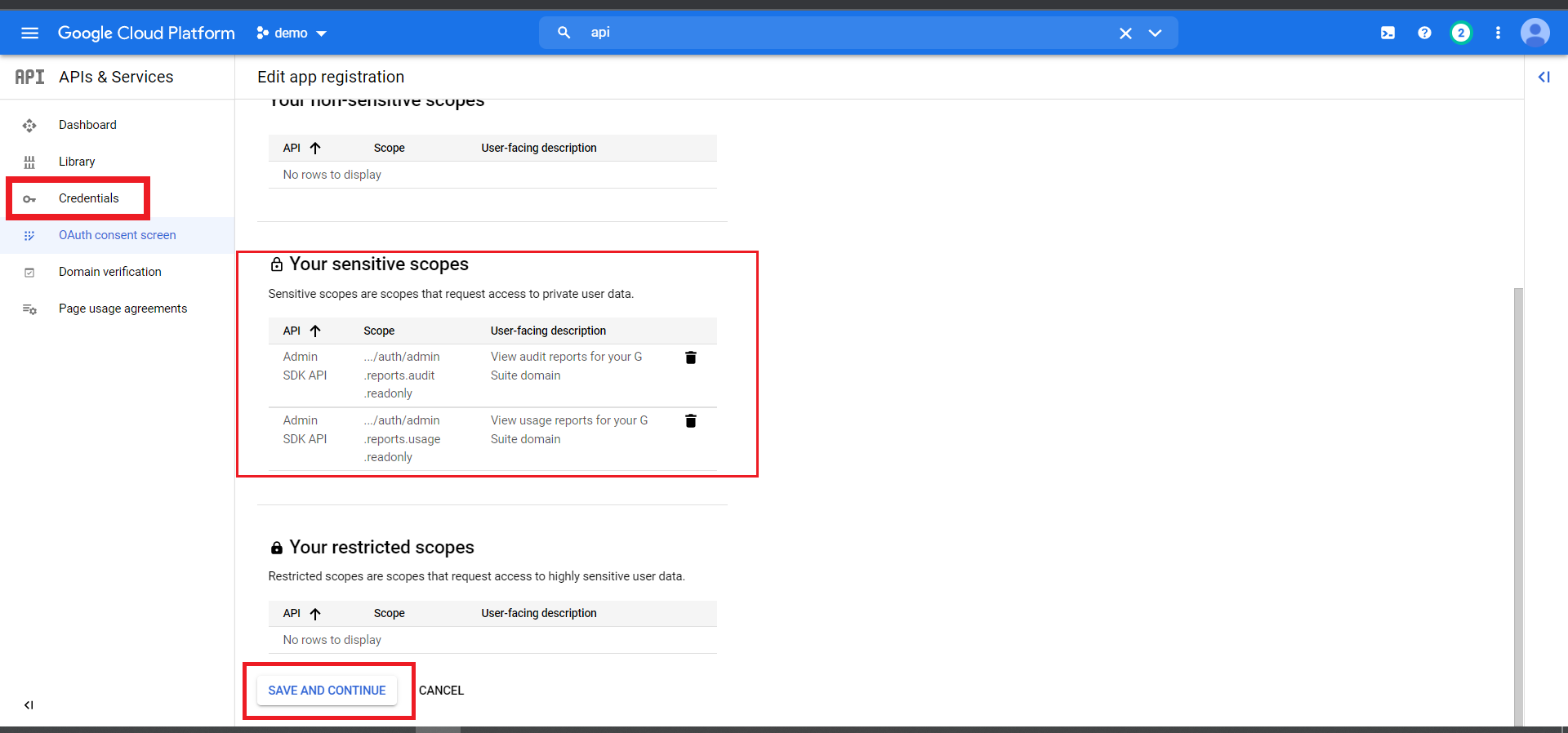
-
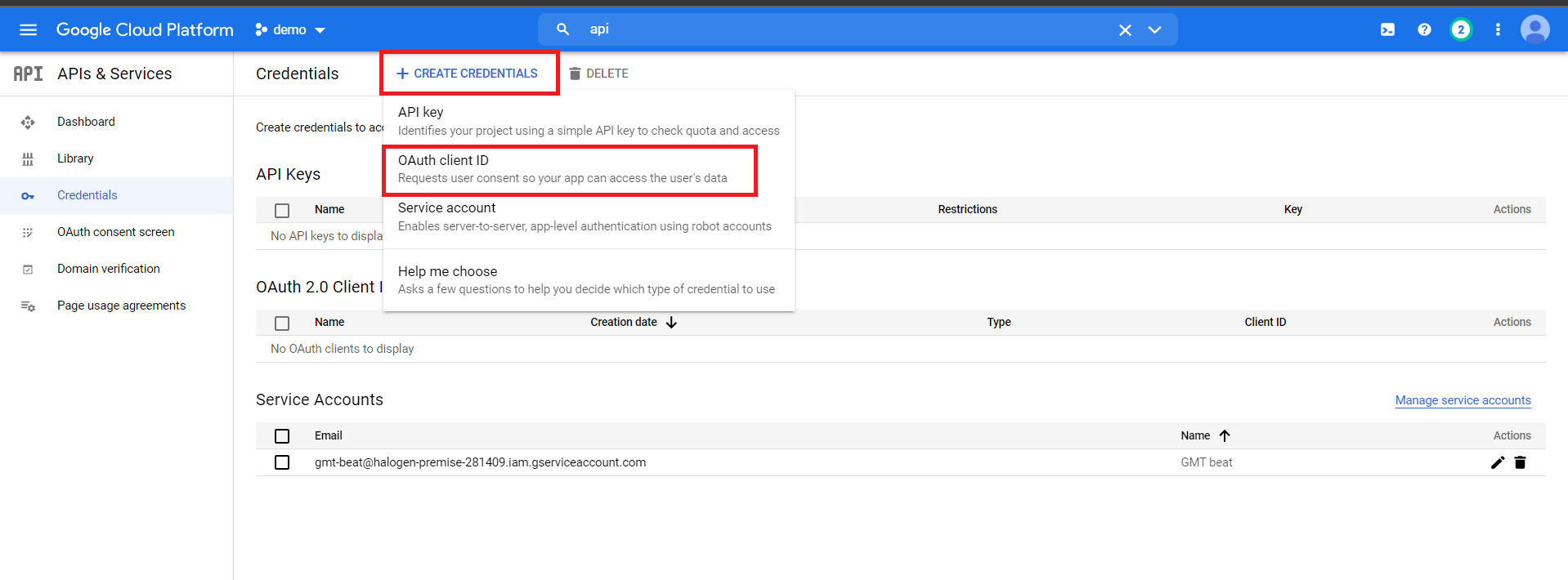
Open the Create Credentials drop-down menu, and click OAuth client ID.
-
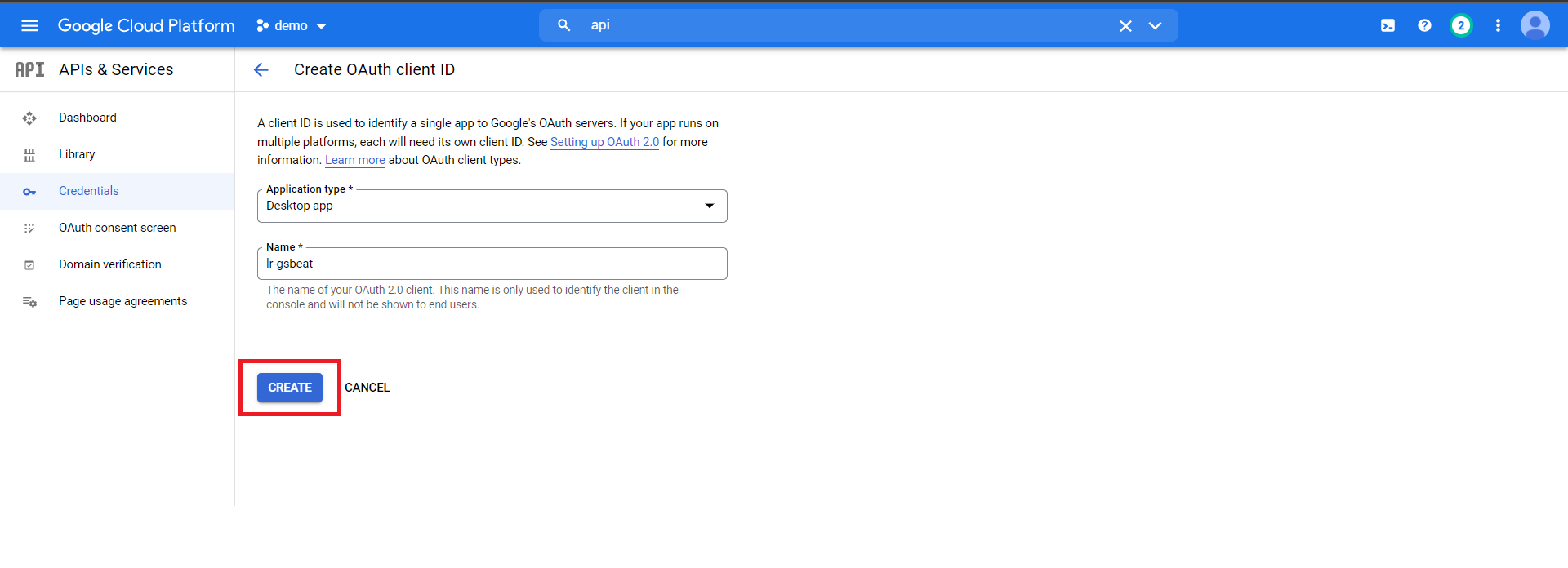
On the Create OAuth Client ID page, do the following:
-
For Application type, select Desktop App.
-
Enter a Name, such as "lr-gsbeat."
-
Click Create.
Your OAuth Consent screen config may look different than the screenshot below. Ensure that you fill out all required fields.
-
-
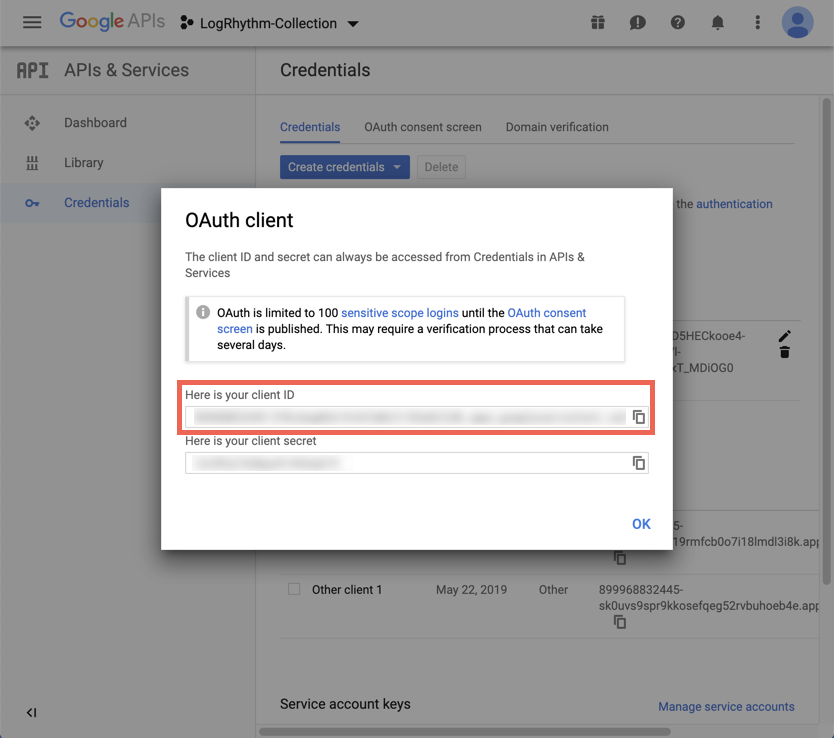
The OAuth client window appears with your client ID and client secret.
-
Copy the client ID and paste it into a text editor. It will be used to configure the app in the workspace admin portal.
-
To close the popup, click OK.
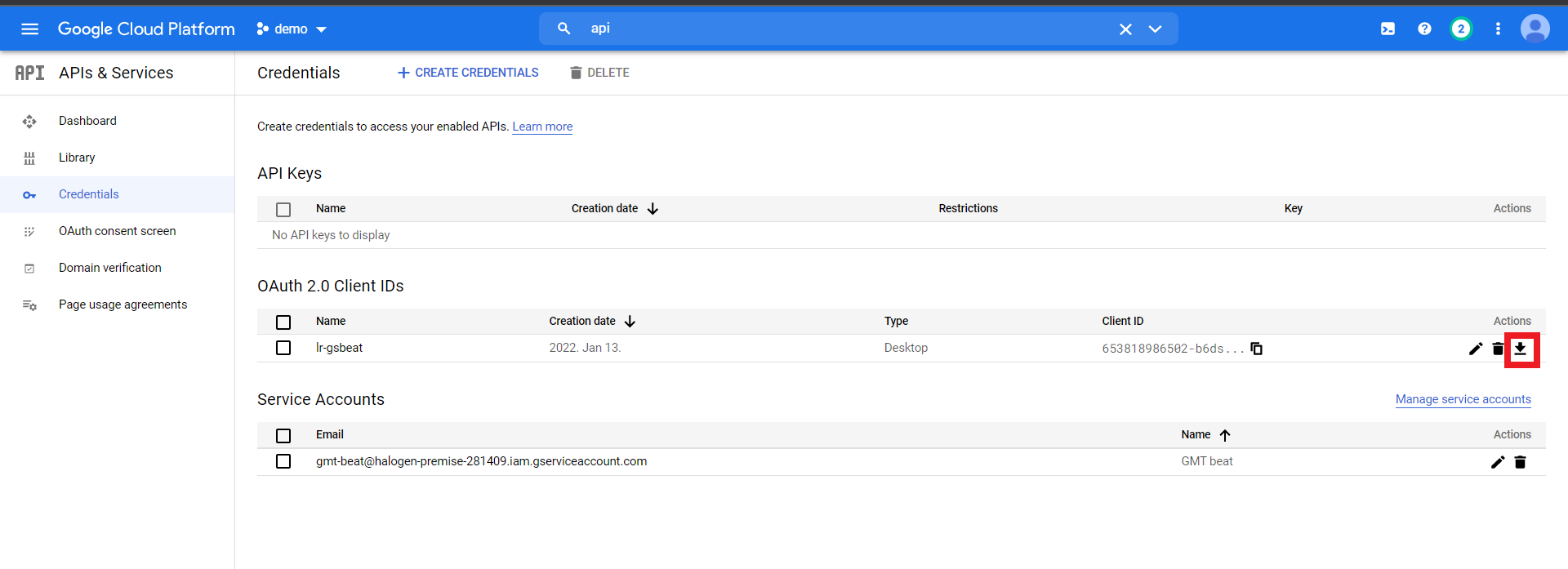
The client ID is now populated on the Credentials page. -
Download the JSON credentials. You need them to Initialize the Google Workspace Beat.
Enable API Access
-
Open the Google Admin console: https://admin.google.com.
-
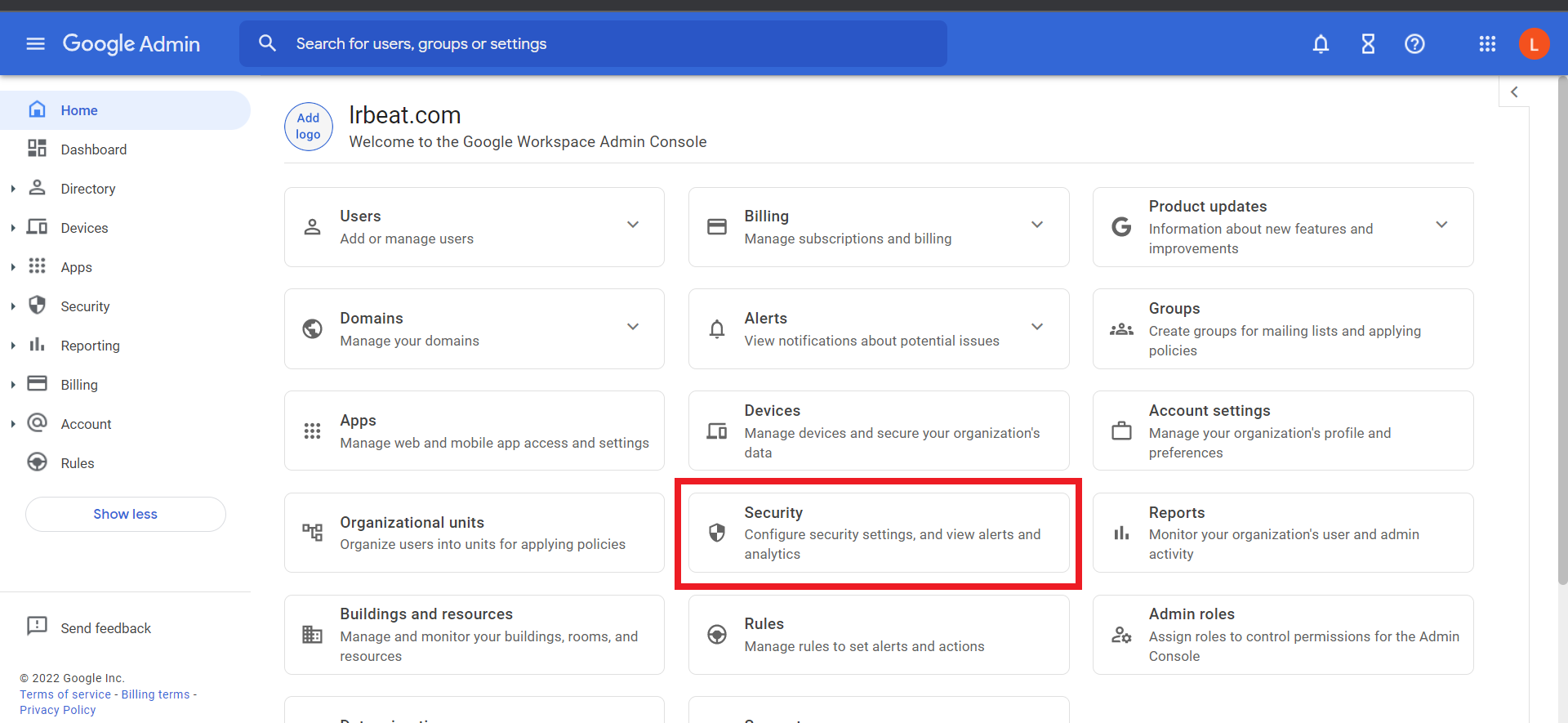
On the home page, click Security.
-
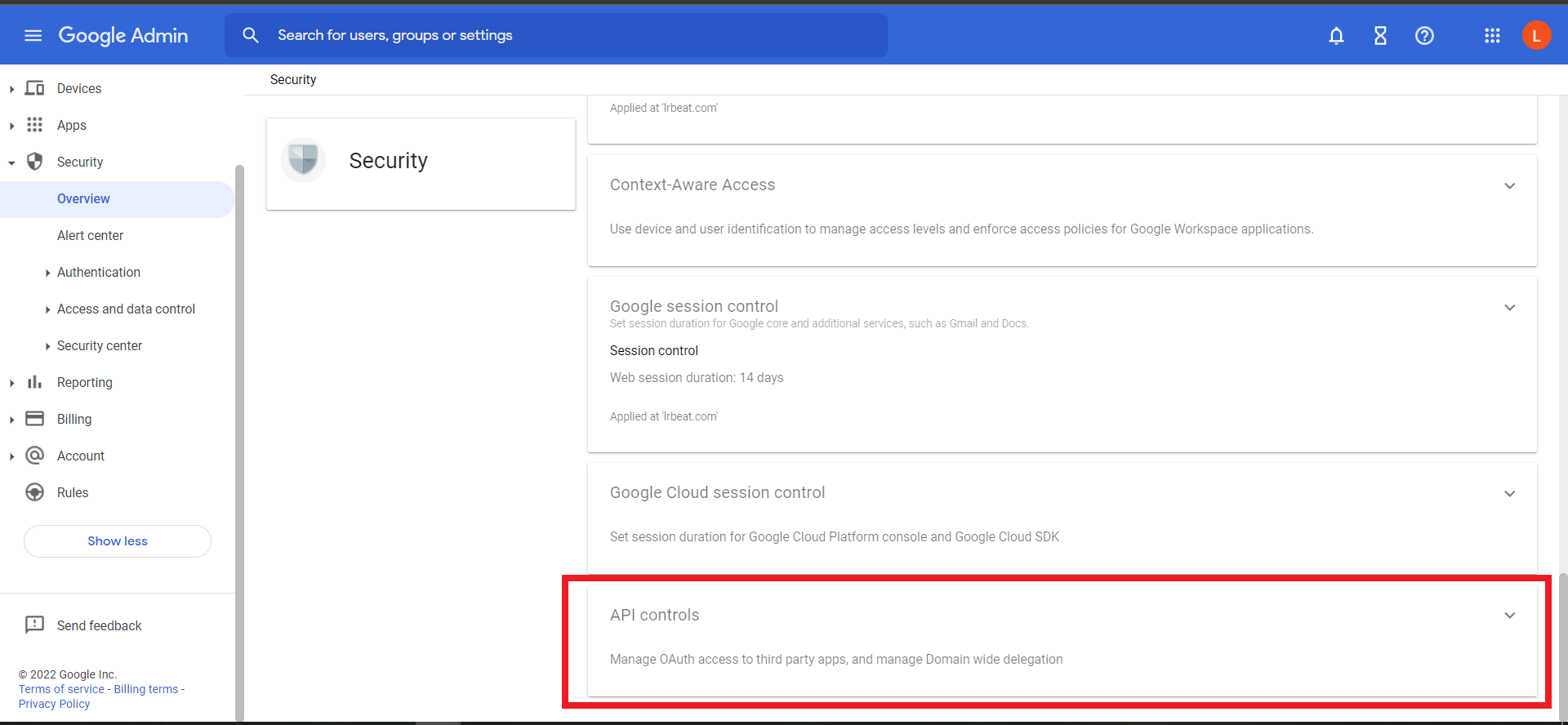
Click API Controls.
-
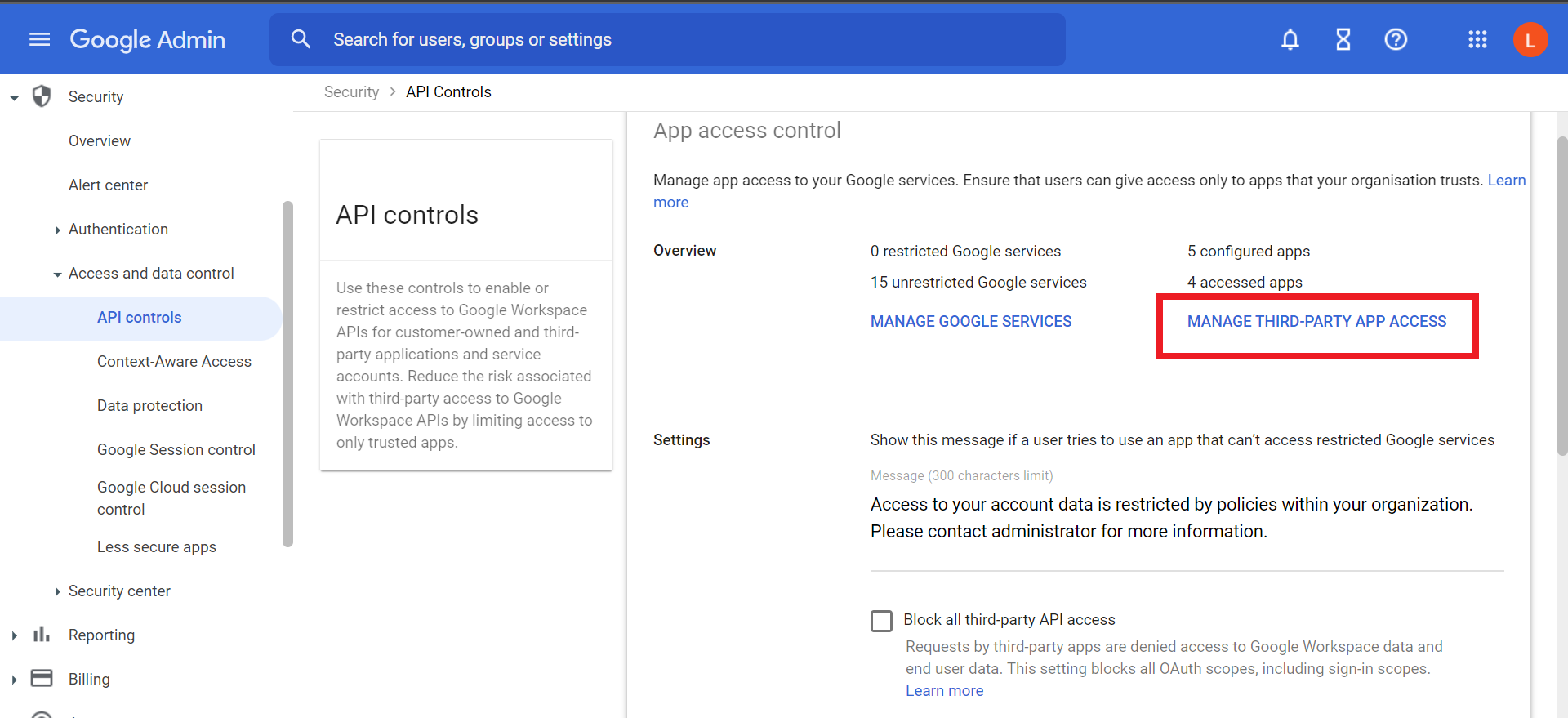
Click Manage Third-Party App Access.
-
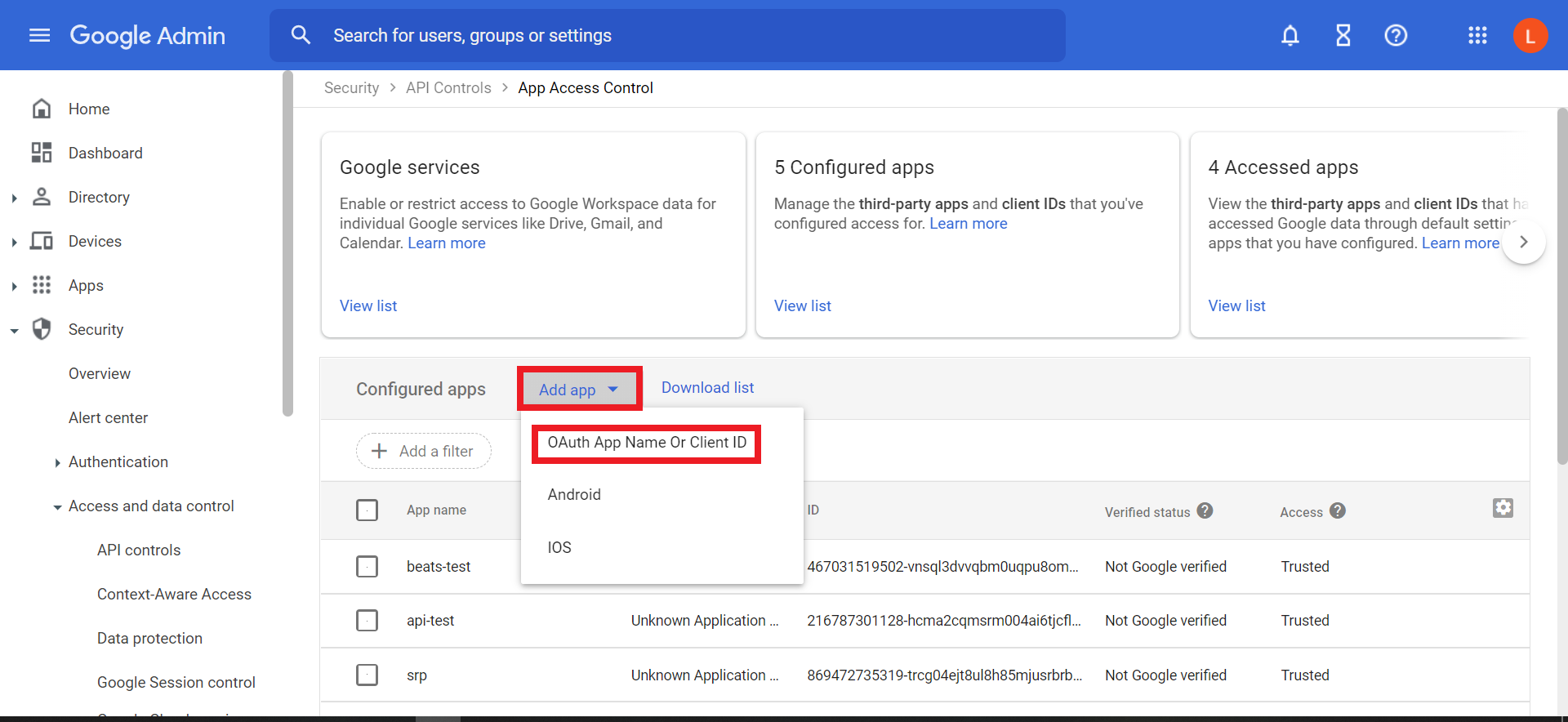
Click on Add app, and select OAuth App Name or Client ID.
-
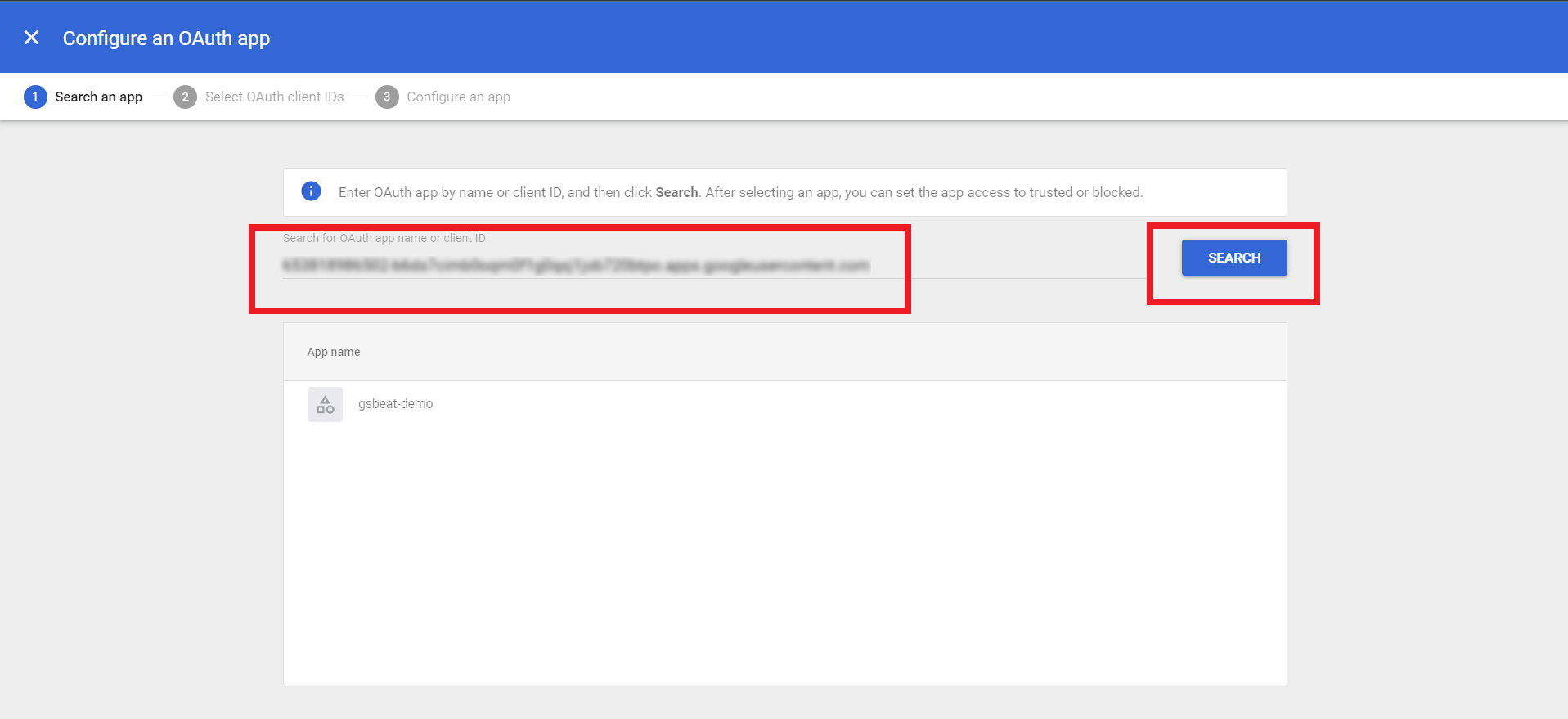
Paste the Client ID copied in the Create Credentials section, and click Search.
-
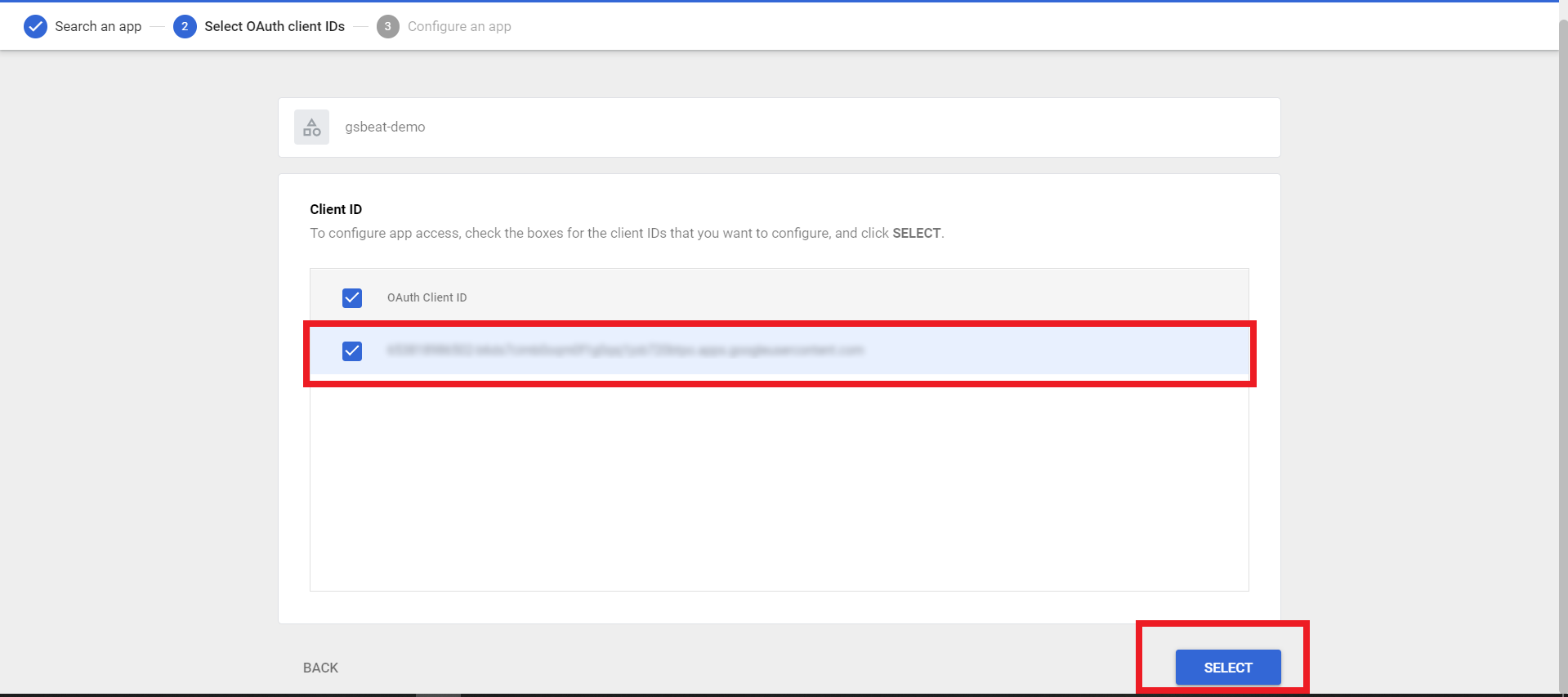
Select OAuth Client ID and the client ID you pasted, then click Select.
-
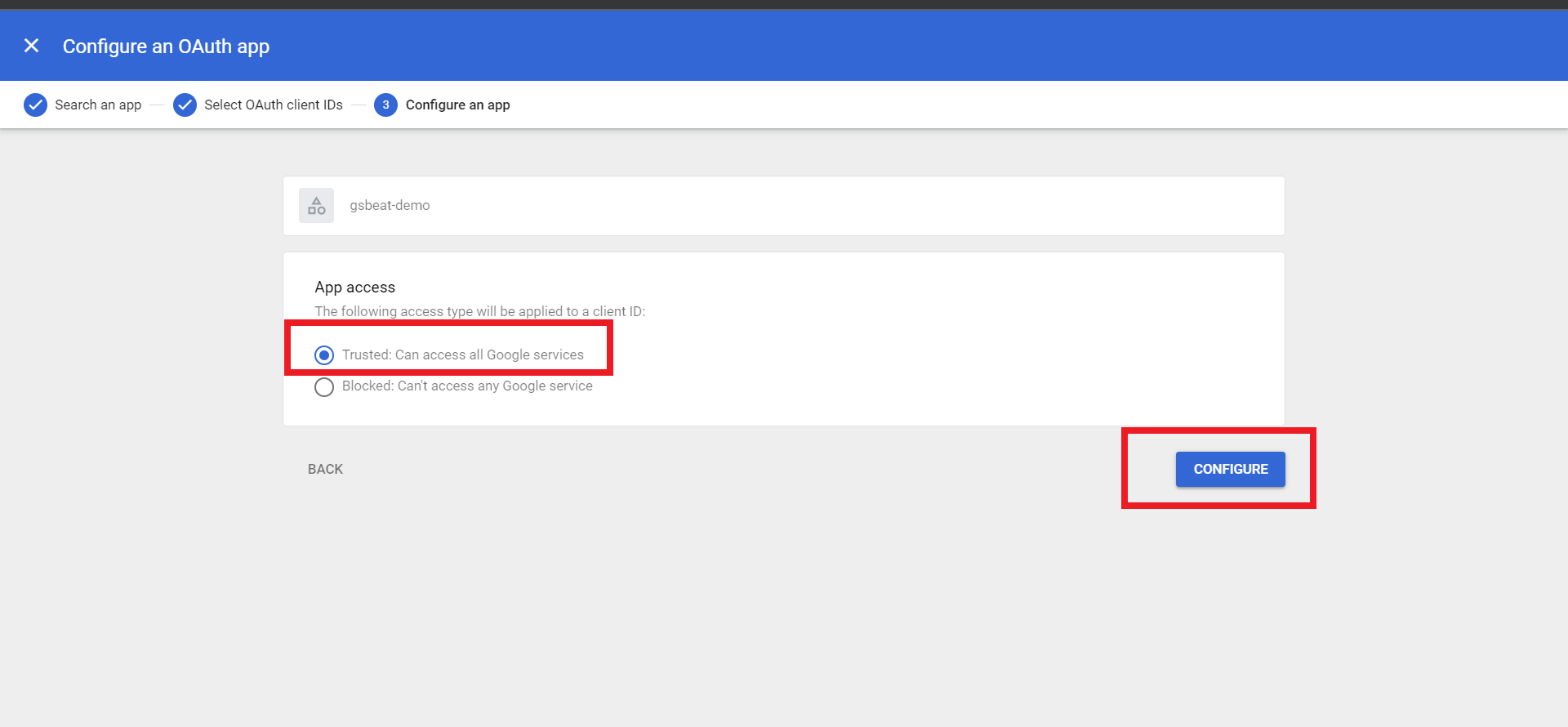
Select the Trusted: Can access all Google services option, and then click Configure.
-
Your app is configured to be used, and you can now Initialize the Google Workspace Beat.