
You can check the status of data replication using one of the following tools:
Use LogRhythm DR Control to Check Status
-
From the Primary (active) Platform Manager, click Start, All Programs, LogRhythm, and Disaster Recovery.
-
Right-click DR Control, and then click Run as administrator. Enter your local system administrator credentials.
A number of metrics will be available to provide a brief view of system health, these are as follows:-
Synchronized. The active database is healthy and sending logs to the secondary node.
-
Synchronizing. The database transfer to the standby database is lagging behind the contents of the active database. This will be normal for Availability Groups utilizing Asynchronous Commit mode, which is the default mode for DR.
-
Not Synchronizing. There is an issue sending transfers between the primary and secondary database.
-
Suspended. The active database is available, but no data is transferring to the standby database.
-
Disconnected. The standby database is not available to receive transfers.
-
Unknown. Neither the active or standby databases are available.
-
SendQueue. Indicates the amount of log records in the log files (in KB) of the primary database that have not been sent to the secondary replica.
-
SendRate. Indicates the rate in KB per second at which log records are being sent to the secondary replica.
-
RedoQueue. Indicates the amount of log records in the log files(in KB) of the secondary replica that have not yet been redone.
-
RedoRate. Indicates the rate in KB per second at which the log records are being redone.
-
EsitmatedRecoveryTime. Indicates the time in seconds it takes to redo the catch-up time. The catch-up time is the time it will take for the secondary replica to catch up with the primary replica.
-
SyncPerformance. The size of the log SendQueue divided by the SendRate.
-
-
To exit the panel, type Q.
Use AlwaysOn Availability Group Dashboard to View Status
-
From the Primary (active) Platform Manager, start SQL Server Management Studio and log in as an administrator.
-
Expand the AlwaysOn High Availability folder and the Availability Groups folder that it contains.
-
Right-click the Availability Group whose status you want to view, and then click Show Dashboard.
The dashboard appears. -
To display additional information in the dashboard, click the Add/Remove Columns link to the right of the Group By field.
You can find additional details about the AlwaysOn Dashboard here.
Replication Modes
You can select one of the following replication modes for transferring databases:
-
Asynchronous. (Default; recommended) Data transfer is acknowledged on the Primary site before being sent to the Secondary site. This method provides the best possible performance for peak times, while the slower periods allow the synchronization to catch up if it falls behind.
-
Synchronous. Data is committed to the Secondary site before the Primary site acknowledges the transfer. The speed of the Primary instance can only be as fast as the link between the two sites.
Maintaining a Disaster Recovery Deployment
Maintenance Jobs
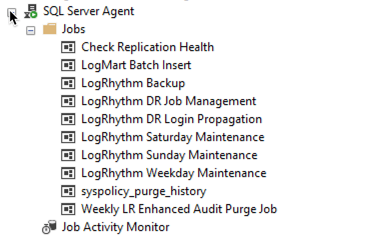
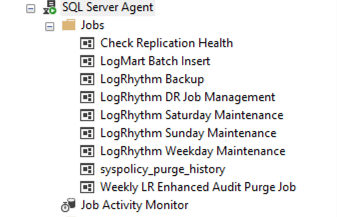
On the Primary PM, all SQL maintenance jobs are enabled. On the Secondary PM, all jobs are disabled except for “LogRhythm DR Job Management,” which remains enabled on both nodes. Additionally, on the PM where you initiate the DR setup, you will see an extra job called “LogRhythm DR Login Propagation.”
Primary/Active PM
Secondary/Passive PM
Check Replication Health Job
This process executes the stored procedure LogRhythm_DR_CheckReplicationHealthAndLogIssues, which verifies the replication status—whether synchronized or not—and logs the results in both the SQL logs and the system event logs under Event ID 17061. If the procedure detects that the databases are not synchronized, it initiates a DR shrink operation on both the database and log file in an attempt to prevent the system from running out of disk space.
LogRhythm DR Job Management
During failover, this job enables the necessary maintenance tasks on the new Primary PM and disables them on the new Secondary PM.
LogRhythm DR Login Propagation
This process executes the master.dbo.LogRhythm_master_PropagateLogins stored procedure from the original Primary PM, which propagates logins from the primary server to a linked server. It reads records from the master.dbo.DR_Login_Propagation table and then calls the dbo.LogRhythm_master_ManageLogins procedure on the linked server.
In a DR enabled system, the login propagation is handled by a stored procedure that is run periodically via an SQL maintenance job called LogRhythm DR Login Propagation. Currently, this job is only created on the primary DR node, and by extension, only performs account synchronization in one direction - from the primary DR node to the secondary DR node.
This is the intended design of this login propagation behavior. A DR failover to the secondary node is not intended to be an extended event with significant administrative events like user account additions. If this is a user requirement, then a more fault-tolerant deployment, such as LogRhythm High Availability, should be considered instead.